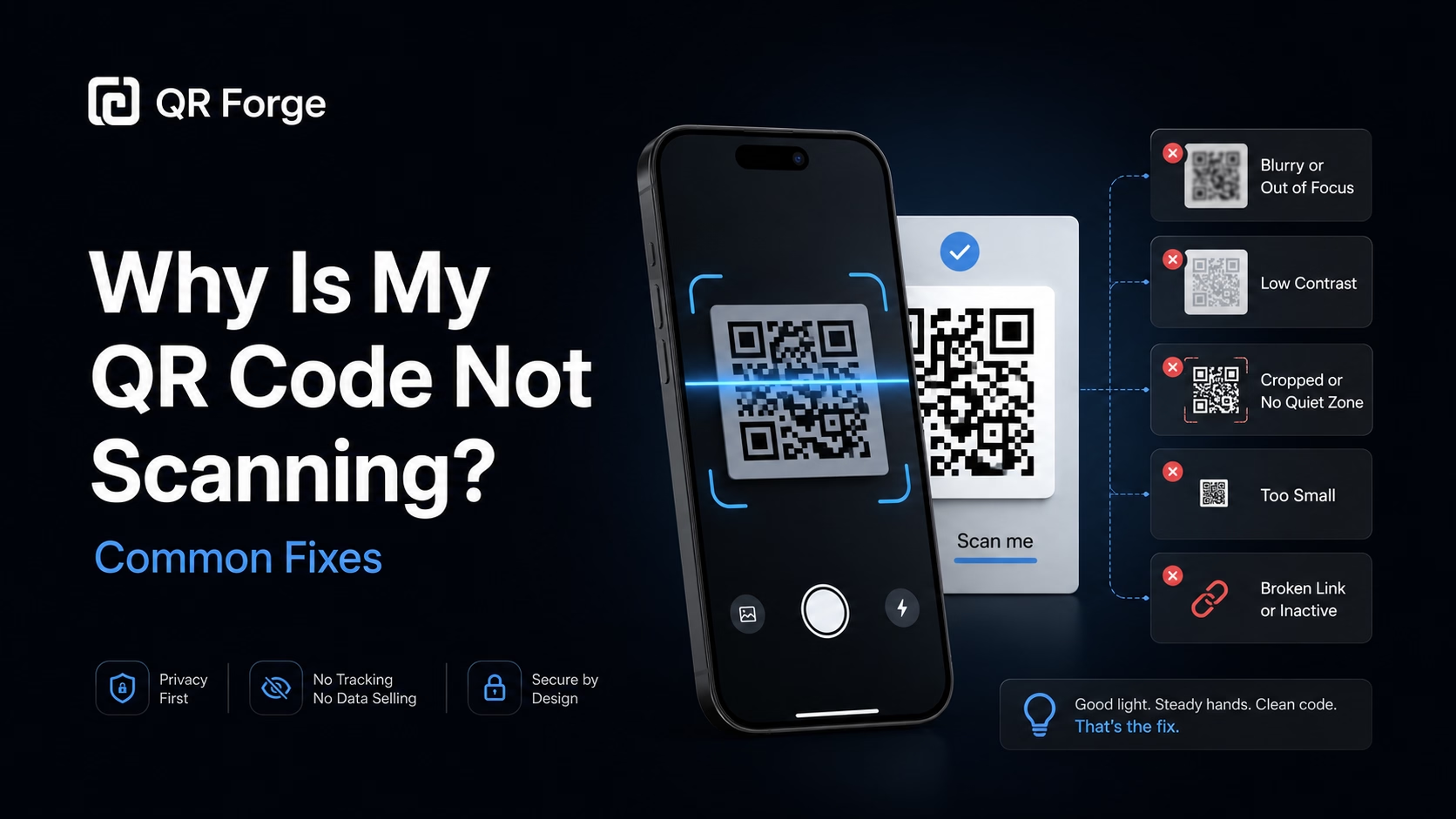
A QR code can look fine but still fail to scan.
Sometimes the problem is the QR code image. Sometimes it is the print quality, lighting, size, background, scanning distance, or destination link. A code may also scan on one phone but fail on another.
This guide explains the most common reasons a QR code is not scanning and how to fix them before you print, publish, or share it.
Create a cleaner QR code
Generate a high-contrast QR code and test it before using it on print or digital materials.
Quick checklist before fixing a QR code
Start with the simple checks first. Most QR code scanning problems come from size, blur, contrast, missing quiet zone, bad print quality, or broken destination data.
What to check first
Make sure:
- the QR code is not too small
- the image is sharp
- the contrast is strong
- the quiet zone is not cropped
- the code is not placed on a busy background
- the printed version is clear
- the phone camera can focus
- the lighting is good
- the destination link still works
Test the final version
Do not test only the QR code preview.
Test the exact version people will scan. If the QR code will be printed, test the printed version. If it will appear on a poster, test it from the real scanning distance.
The QR code is too small
A QR code needs enough physical size for a phone camera to detect the pattern clearly.
If the code is too small, the scanner may not read the corners and modules properly.
Why small QR codes fail
Small QR codes fail more often when the user scans from far away, the lighting is poor, the print quality is low, or the QR code contains dense data.
They can also fail on older phone cameras or when users scan quickly.
How to fix it
Increase the QR code size and test again.
For close-range print materials, avoid making the QR code tiny. For posters, signs, banners, and wall displays, make the QR code much larger because people scan from farther away.
Use the size guide
If you are unsure how large your QR code should be, use the QR code size guide as a starting point.
A business card QR code can be smaller than a poster QR code because the scanning distance is different.
The QR code is blurry or pixelated
A blurry QR code is one of the most common scan issues.
QR codes rely on sharp edges. When the pattern becomes blurry, compressed, or pixelated, scanners may struggle to read it.
Why QR codes become blurry
A QR code can become blurry when:
- a small image is enlarged
- the file is compressed too much
- the image is exported as a low-quality JPEG
- the design tool resizes it poorly
- the image is copied from a screenshot
- the printed resolution is too low
How to fix it
Use a fresh, high-quality export.
For most use cases, PNG is better than JPEG because it keeps sharp edges. SVG is also useful when you need to resize the QR code in a design tool.
Avoid screenshots
Do not use a screenshot as the final QR code asset.
Screenshots can reduce quality and add compression artifacts. Download the QR code directly when possible.
The contrast is too low
A QR code needs strong contrast between the pattern and the background.
Black on white is the safest option.
Common contrast problems
Contrast problems happen when the QR code is light gray, the background is not plain, the colors are too similar, or the QR code is placed directly on a photo or gradient.
How to fix it
Use a dark QR pattern on a light background.
Avoid placing QR codes directly over images, textures, gradients, or decorative graphics unless there is a clean background behind the code.
Keep it simple
Custom colors can work, but reliability matters more than decoration.
If scanning fails, return to a simple high-contrast design.
The quiet zone is missing
The quiet zone is the empty space around a QR code.
It helps the scanner understand where the QR code begins and ends.
Why the quiet zone matters
Without enough quiet zone, surrounding text, icons, borders, or backgrounds may interfere with scanning.
The QR code may still look normal to a person, but a phone camera may fail to identify it correctly.
How the quiet zone gets removed
The quiet zone can be lost when the QR code is cropped too tightly, a border is placed too close, text is placed near the code, or the design tool clips the image.
How to fix it
Leave clear empty space around all sides of the QR code.
Do not crop the image too close to the pattern. When in doubt, add more space.
The quiet zone is part of the QR code experience. Treat the empty margin around the QR code as required space, not wasted space.
The QR code is placed on a busy background
A QR code should be easy for the scanner to separate from its background.
Busy images, patterns, textures, and decorative shapes can make scanning harder.
Backgrounds that cause problems
Avoid placing QR codes directly on photos, gradients, patterned backgrounds, textured paper, dark graphics, colorful illustrations, or transparent overlays.
How to fix it
Put the QR code inside a plain white or light-colored box.
Make sure the box includes enough quiet zone around the QR pattern.
Design safely
You can still make the design look good, but the QR code area itself should stay clean and readable.
The QR code is damaged, stretched, or distorted
A QR code can fail when parts of the pattern are damaged, stretched, bent, or distorted.
This is especially common on physical materials.
Common damage problems
Damage can happen when the QR code is scratched, folded, covered by tape, printed across a seam, placed on a curved surface, stretched unevenly, partially hidden, or cut off by trimming.
Keep the code square
QR codes should stay square.
If a QR code is stretched horizontally or vertically, the pattern may become distorted. When resizing, lock the aspect ratio and do not squeeze the code to fit a design.
Test the real object
For packaging, stickers, bottles, and labels, test the QR code on the actual object, not only on the flat design mockup.
The printed version has poor quality
A QR code may scan perfectly on screen but fail after printing.
Print quality can change the sharpness, contrast, and readability of the code.
Print issues that affect scanning
Printed QR codes may fail because of low printer resolution, ink bleeding, glossy glare, matte texture, paper fibers, low contrast ink, small print size, or compression in the print file.
How to fix it
Print a proof before producing many copies.
Use a high-resolution QR code export and avoid heavy compression. For professional printing, provide a clean PNG or SVG when possible.
Test under real lighting
A QR code on glossy paper may scan in one room but fail under bright light because of glare.
Test in the same environment where people will scan it.
The QR code is too far away
Scanning distance matters.
A QR code that is readable from 20 cm may not be readable from 2 meters.
Where distance becomes a problem
Distance issues often happen with posters, banners, wall signs, presentation slides, event screens, classroom materials, storefront signs, and billboards.
How to fix it
Increase the QR code size based on scanning distance.
Also place it where people can stand still and scan comfortably.
Give users time
For digital screens, do not show the QR code too briefly.
People need enough time to open the camera, focus, and scan.
The lighting is poor
Phone cameras need enough light and focus to scan a QR code reliably.
Poor lighting can make even a good QR code hard to scan.
Lighting problems
Scanning can fail when the area is too dark, there is strong glare, the code reflects light, the screen brightness is low, shadows cover part of the code, or the code is behind glass.
How to fix it
Improve lighting, reduce glare, and make sure the QR code is visible from a comfortable angle.
For screen-based QR codes, increase screen brightness and avoid reflections.
The QR code destination is broken
Sometimes the QR code scans correctly, but the destination does not work.
In that case, the problem is not the QR pattern. The problem is the data inside the QR code.
Common destination problems
A QR code may open a broken destination if:
- the URL has a typo
- the website is offline
- the page was deleted
- the domain expired
- the link redirects incorrectly
- the WiFi password changed
- the WhatsApp number changed
- the file was moved or deleted
How to fix it
Scan the QR code and check the destination.
If the QR code is static and the encoded information is wrong, you need to create a new QR code.
Static QR code limitation
A static QR code stores the final data directly in the code. If that data is wrong or outdated, the QR code image cannot be edited after printing.
The QR code contains too much data
QR codes can store different amounts of data, but more data makes the pattern denser.
Dense QR codes are harder to scan when printed small.
What makes a QR code dense
QR codes become dense when they contain very long URLs, long plain text, detailed contact data, long WiFi passwords, or long pre-filled messages.
How to fix it
Use shorter and cleaner data where possible.
For URL QR codes, use a stable URL that is not unnecessarily long. For WhatsApp QR codes, keep the pre-filled message short.
Increase the size
If the QR code must contain a lot of data, make it larger.
Dense codes need more physical space.
The QR code was exported in the wrong format
File format matters.
A QR code should keep clean, sharp edges.
Best formats for QR codes
For most workflows:
- PNG is good for digital use and simple print
- SVG is best when resizing inside design tools
- JPEG is less ideal because it can blur edges
- WebP and AVIF are useful for web display but not always ideal for print handoff
How to fix it
Use PNG or SVG for QR code assets when possible.
Avoid low-quality JPEG exports and avoid repeatedly compressing the same image.
The QR code is blocked by a logo or decoration
Adding a logo to a QR code can look professional, but too much decoration can reduce scan reliability.
Logo placement problems
A QR code may fail if the logo is too large, covers important modules, overlaps finder patterns, removes contrast, or is added to a dense QR code.
How to fix it
Keep the logo small and centered.
Do not cover the three large corner squares. Test the code after adding the logo.
Use decoration carefully
A clean QR code is usually more reliable than a heavily customized one.
The camera app does not support QR scanning
Some devices or apps may not scan QR codes automatically.
This is less common on modern phones, but it can still happen.
What to check
If a phone does not scan the code:
- try the built-in camera app
- try the phone's QR scanner
- check camera settings
- update the system if needed
- try another phone
- use better lighting
Separate device issues from QR issues
If the QR code works on several phones but not one device, the issue may be the device or scanner app rather than the QR code.
The QR code is hidden in the design
Sometimes the QR code technically works, but users do not notice it or do not understand what it does.
That can make the campaign feel like the QR code is failing.
Visibility problems
A QR code may be ignored if it is too small, too far from the main message, placed at the bottom edge, hidden in a corner, surrounded by clutter, or missing a call to action.
How to fix it
Place the QR code where people naturally look.
Add a short call to action such as:
- Scan to visit
- Scan to order
- Scan to join WiFi
- Scan to chat
- Scan to download
- Scan for details
How to test a QR code properly
Testing is the best way to prevent scan problems.
A QR code should be tested before publishing, printing, or distributing.
Test on multiple phones
Use more than one device when possible.
Test with iPhone, Android, newer phones, older phones, and different camera apps.
Test from real distance
Stand where the real user will stand.
If the QR code is for a poster, test it from poster distance. If it is for a business card, test it from hand distance.
Test the final design
Test the QR code after it is placed into the final design.
A QR code may work alone but fail after being resized, compressed, recolored, or placed on a busy background.
Test the final print
If the QR code will be printed, test a printed proof.
Do not rely only on the digital preview.
Fixing QR code problems by use case
Different placements have different failure points.
Business cards
For business cards, check size, quiet zone, print sharpness, and contrast.
Do not place the QR code too close to the edge.
Flyers
For flyers, check size, call to action, background, and final print quality.
Make sure the QR code is not lost inside the design.
Posters
For posters, check scanning distance and visibility.
The QR code should be large enough for someone to scan comfortably from where they stand.
Packaging
For packaging, check curved surfaces, folds, seams, glare, and material texture.
Test on the real package shape.
Digital screens
For screens, check brightness, reflections, display time, and viewing distance.
Make the QR code large enough and keep it on screen long enough.
QR code not scanning checklist
Use this checklist before publishing or printing.
Visual checklist
Confirm that:
- the QR code is square
- the code is large enough
- the pattern is sharp
- the contrast is strong
- the quiet zone is preserved
- the background is clean
- no logo covers key areas
- the QR code is not stretched
- the code is not cropped
Print checklist
Confirm that:
- the printed code is clear
- the paper does not create too much glare
- the size is readable
- the code is not on a fold or seam
- the final print has been tested
Destination checklist
Confirm that:
- the URL works
- the phone number is correct
- the WiFi details are correct
- the file link is accessible
- the destination is not deleted
- the domain has not expired
- the final QR code opens the right place
Create QR codes that scan reliably
A QR code should be easy to scan in the real environment where people will use it.
Most scanning problems come from size, blur, contrast, missing quiet zone, bad print quality, poor placement, or broken destinations.
Final reminder
Before sharing your QR code, test the final version on multiple phones and from a realistic distance.
That one step can prevent most QR code failures.
Create a clean QR code with QR Forge
Generate a high-contrast QR code, download it, and test it before using it in print or digital materials.