A URL QR code stores a web address so a compatible scanner can offer to open it. It saves people from typing a long link and works on printed materials, screens, and digital documents.
This guide covers the QR Forge workflow, choosing a destination, and checking that both the code and the website work as intended.
Create a website QR code
Generate a static QR code for an HTTP or HTTPS website URL directly in your browser.
What a URL QR code contains
A URL QR code contains the address you enter, for example:
https://example.com/menu
The QR code does not host the page or check whether it is trustworthy, safe, or available. Scanning reads the URL; opening it and deciding whether to visit it are separate steps for the user and their device.
URL codes are useful for a specific menu, booking page, product guide, portfolio, signup form, support page, or event page. Use the page people expect from the nearby instruction, rather than sending every scan to a generic homepage.
When a website QR code is useful
A website QR code is useful when a person sees your material but would otherwise need to type a URL or search for the destination. Match the placement and call to action to the page it opens.
Printed materials
On a poster or flyer, link directly to the event details or registration form. A menu card should open the current menu; a product package can lead to setup instructions, warranty information, or support. Business cards often work better with a portfolio or contact page than a generic homepage. For all printed uses, leave enough room for the code to be scanned at the expected distance.
Digital materials
A QR code on a presentation slide, webinar screen, classroom handout, or PDF can help someone open a resource on a second device. If the audience is likely to view the material on the same phone they would scan with, include a normal clickable URL as an alternative.
Create and test a URL QR code in QR Forge
1. Enter the final web address
Open the URL QR Code Generator and enter the destination in the URL field. For example:
https://getqrforge.site
The form notes that https:// is added automatically when needed. QR Forge accepts HTTP and HTTPS web addresses; other schemes such as javascript: are not accepted. A syntactically valid URL is not a safety or availability check, so open the page yourself and verify its content before printing.
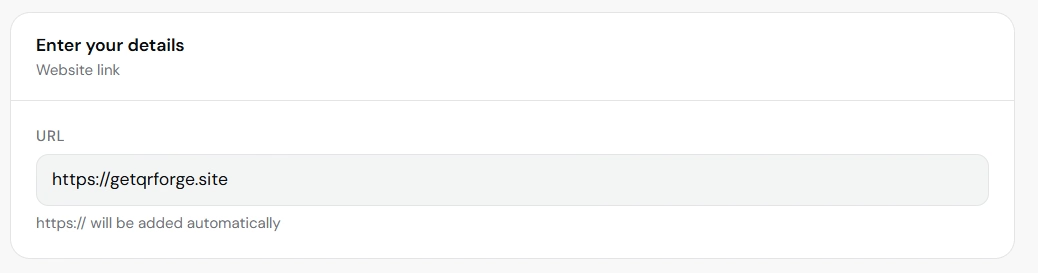
Enter the website URL you want the QR code to open.
2. Customize the design
Use Style to select a preset or adjust the dot and corner styles, foreground and background colors, transparency for PNG, or gradient. The other panels include Frame, Logo, Size & QR, Templates, Batch, and Tools. Keep a clear quiet zone and enough contrast; a logo or decorative treatment can make scanning less reliable, so test the finished design.
The example below shows the current contrast indicator and a logo warning. Its measured contrast is not a guarantee for every printed size, lighting condition, or scanner.
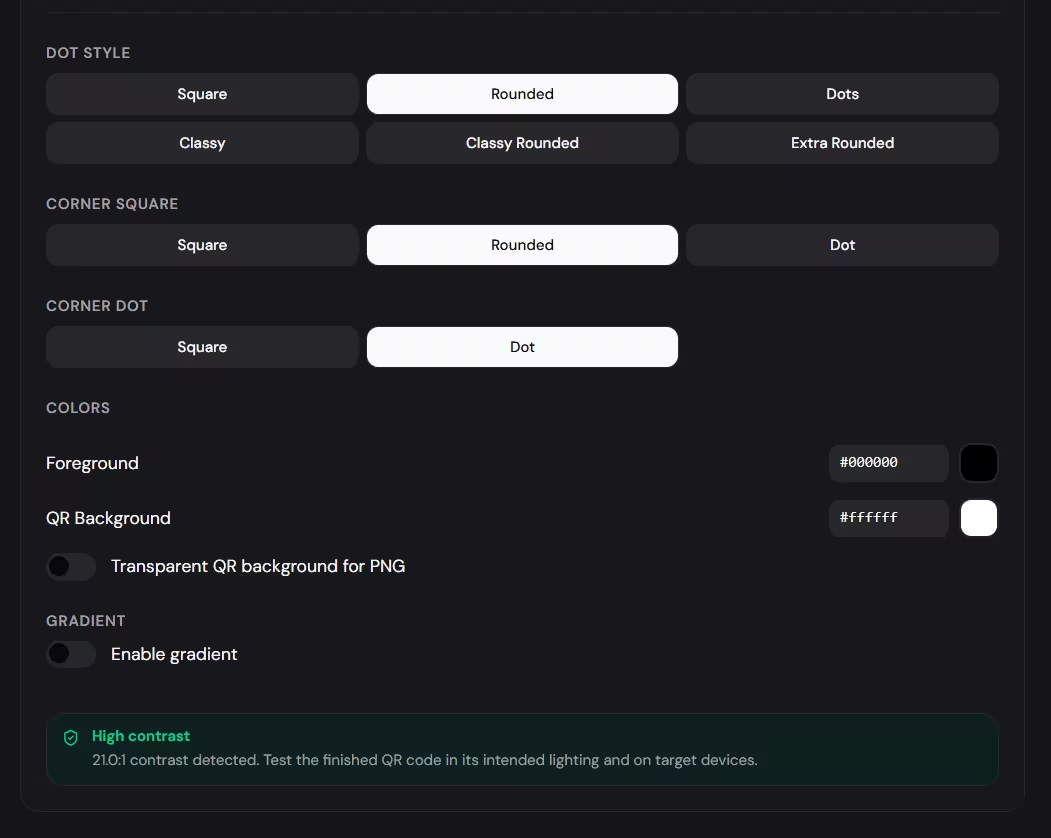
Choose a preset or adjust the code’s pattern, frame, logo, and colors while keeping it easy to scan.
3. Review the live preview and export
Check Live Preview, including the encoded URL shown below it, before downloading. The panel provides Copy image, a format selector, and an output-size selector. In the example, the selection is PNG at 1024px and the encoded address is https://getqrforge.site.
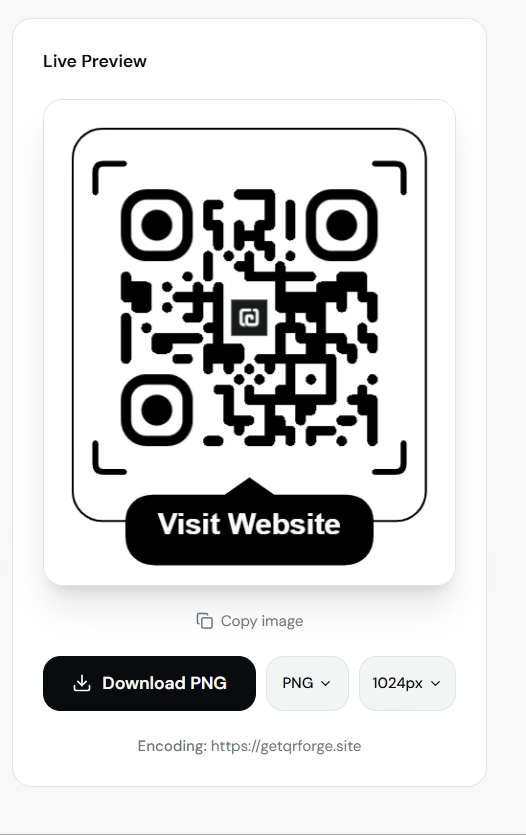
Confirm the destination and final appearance before exporting the code.
4. Scan the exported result
Scan the downloaded image with a phone and confirm that the scanner displays the expected address. Open it and check the mobile page, links, forms, or other action the QR is meant to support.
If the code will be used by a broad audience, test more than one device if you can: for example, an iPhone camera and an Android camera or QR scanner. The scanner may display a preview or confirmation before opening the browser, and that behavior is not identical across phones. If you will print the code, also test a proof at the final size, on the intended material, and from the distance people will scan it.
Choose a URL that will keep working
Choose the final destination
Link directly to the most useful page: a menu QR should open the menu, and a booking QR should lead to the booking flow. Prefer a mobile-friendly destination because the scan usually happens on a phone. Before printing a large batch, open the link on a phone that is not signed in to your site or service; this can reveal pages that work only for the owner.
Decide whether to use a short link
A long URL can create a denser QR pattern. A short link may reduce the encoded characters and can be easier to type manually. It may also provide campaign tracking or a redirect you can change later. Those benefits come with a dependency: the short-link service, account, and redirect need to remain available and configured correctly. A short URL can also look unfamiliar to scanners, so use a provider people can trust. Direct URLs avoid an extra layer and are preferable when a simple, privacy-conscious destination matters more than tracking.
Static and dynamic destinations
QR Forge creates a static code whose URL is fixed in the pattern. A dynamic QR service generally puts a changeable redirect URL in the code instead. Dynamic links can support destination changes or provider analytics, but they depend on that provider and its redirect service. With a static code, changing the page path or domain does not change the URL already encoded—you need a new code, or you must keep a redirect at the original address. If the original domain expires, an old printed code still points to it, so keep domain registration current for long-lived campaigns.
Troubleshoot a URL QR code
The form rejects the address
Check for a typo, spaces, or an unsupported scheme. Use a web address with a host; QR Forge adds https:// when a host is entered without a scheme. A port may be part of the host, for example example.com:8443. The form checks URL structure, not whether the site is trustworthy or reachable.
The code scans but the page does not load
Open the encoded URL directly on a phone. Confirm the page is public, still exists, and does not require a login your audience will not have. Check the phone’s internet connection and any redirect destination. A QR scan can succeed even when the website is offline or blocked.
The scan is slow or inconsistent
First test the original export without a logo or frame. If it scans more reliably, simplify the design, restore more clear space around the pattern, or increase contrast. For a long URL, consider whether a short link is worth its service dependency. For print, increase size and use a sharp export rather than an image that has been heavily compressed.
The wrong page opens
Compare the URL shown under the preview with the intended address, including the path and any redirect. If the QR is correct but the page content moved, update the old page or redirect where possible; otherwise create and distribute a replacement code. A static QR pattern itself cannot be edited after printing.
Print and placement checks
Make the action clear
Do not place a URL QR code without context. Add a short instruction such as “Scan to view the menu,” “Scan to book,” or “Scan to open the product guide.” The wording should match the URL destination so a scanner knows what to expect.
Keep the pattern readable
Choose a size for the scanning distance, keep the pattern sharp, and leave clear space around it. Black on white is a reliable starting point; very similar foreground and background colors, busy imagery, a missing quiet zone, or a logo over important modules can make scanning harder. Test the complete design rather than only the editor preview.
Check the physical proof
Scan a proof after printing, at the final size and from the distance people will use. Paper texture, reflective surfaces, blur, and print quality can change the result. If a poster scans only when held close, enlarge the code or move it nearer to the audience instead of assuming every phone camera will compensate.
Does a URL QR code work offline?
The QR pattern can be scanned without internet access, but loading its website requires a connection. If the information must be available offline, consider a Text QR for a short note or another suitable content type; a URL QR does not contain the website itself.
How QR Forge handles URL generation
QR Forge builds the URL payload in your browser and does not send it to a QR Forge application server to generate the code. The generated code is static and does not use a QR Forge scan-tracking redirect by default. Optional saved designs and separate website analytics or advertising are described in the Privacy Policy.
Create a free URL QR code
Generate a QR code for an HTTP or HTTPS website URL in your browser. No login or watermark; QR generation does not require a QR Forge backend.