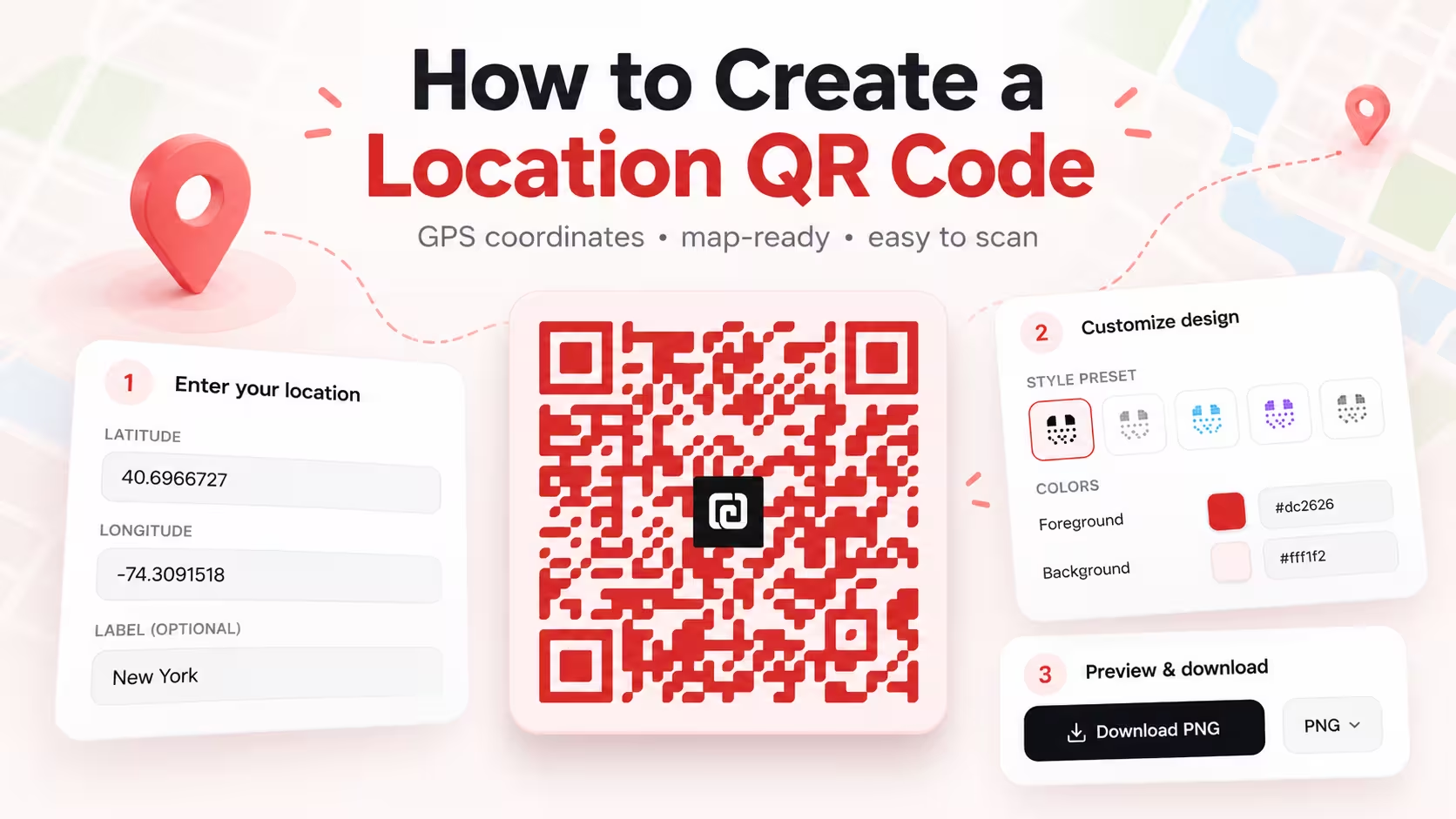
A location QR code lets someone open a physical place on a map without typing coordinates or searching manually.
Instead of entering an address or GPS point by hand, a user can scan the QR code and jump directly to the saved location in a compatible maps app.
That makes location QR codes useful for storefronts, events, parking instructions, venue entrances, real estate signage, travel guides, delivery points, and any situation where people need a fast way to open a map location.
Create a location QR code
Generate a static QR code that opens GPS coordinates in a compatible maps app.
What is a location QR code?
A location QR code is a QR code that stores geographic location data.
It usually contains coordinates
The most common setup includes:
- latitude
- longitude
- an optional label
It helps users open a map faster
Instead of copying coordinates or searching for a place manually, the user scans the QR code and opens the location directly.
It is useful for map-based actions
A location QR code is best when the next step is:
- viewing a place on a map
- getting directions
- confirming a venue location
- finding an entrance or pickup point
A location QR code is best when the goal is to open a place in a mapping app, not just display an address as plain text.
How to create a location QR code in QR Forge
QR Forge includes Location as one of its QR Content Types, so you can enter GPS coordinates, customize the design, preview the result, and export the QR code from one screen.
Step 1: Enter the GPS coordinates
Open the main generator and choose the Location content type.
Then fill in the fields shown in the Enter your details panel.
In the current QR Forge interface, the location form includes:
- LATITUDE
- LONGITUDE
- LABEL (OPTIONAL)
The example shown uses:
Latitude: 40.6966727
Longitude: -74.3091518
Label: New York
The interface also notes:
Shown in Google Maps
That makes it clear this QR code is meant to help users open the saved point in a map experience.
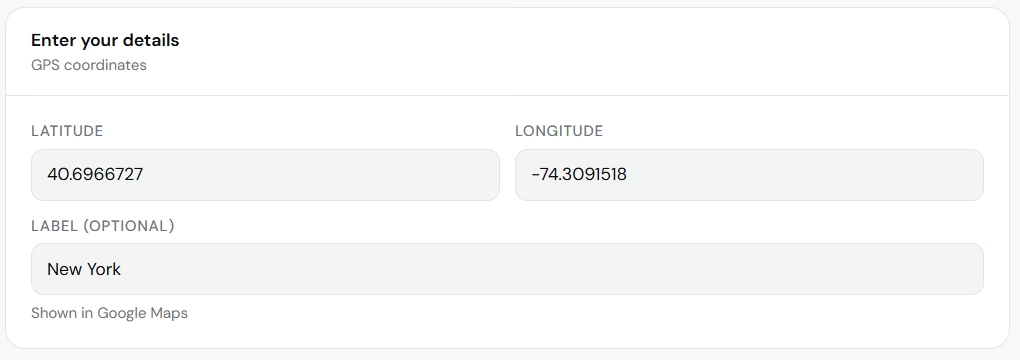
Enter the GPS coordinates and an optional label to define the location you want users to open.
Step 2: Review or choose a style preset
After entering the coordinates, you can customize the QR code design inside the same generator.
QR Forge provides several main working areas, including:
- Style
- Logo
- Size & QR
- Templates
- Batch
- Tools
- Randomize
In the current example, the Style tab is open and shows Style Presets such as:
- Classic Black
- Soft Rounded
- Ocean Blue
- Neon Gradient
- Corporate Dark
- Minimal Light
- Sunset Gradient
- Tech Purple
A preset is a fast starting point. You can choose one and then refine the result further.
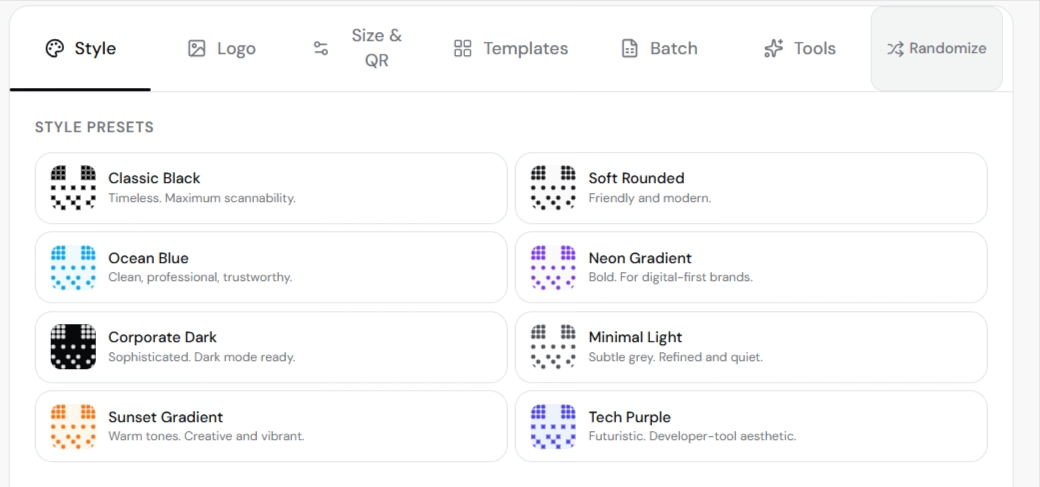
Use a preset as a starting point, then refine the location QR code design as needed.
Step 3: Adjust dots, corners, colors, and scanability settings
Below the preset area, QR Forge also provides detailed styling controls.
The example interface includes:
- Dot Style
- Corner Square
- Corner Dot
- Foreground
- Background
- Transparent background for PNG
- Enable gradient
In the example screenshot, the selected colors are:
- foreground:
#dc2626 - background:
#fff1f2
The scanability panel also shows a quality signal. In the example, QR Forge reports:
Good
4.4:1 contrast — scans reliably in good lighting.
Logo detected — use H error correction.
This guidance matters. Styling should support the design, but the QR code still needs to scan reliably in real-world conditions.
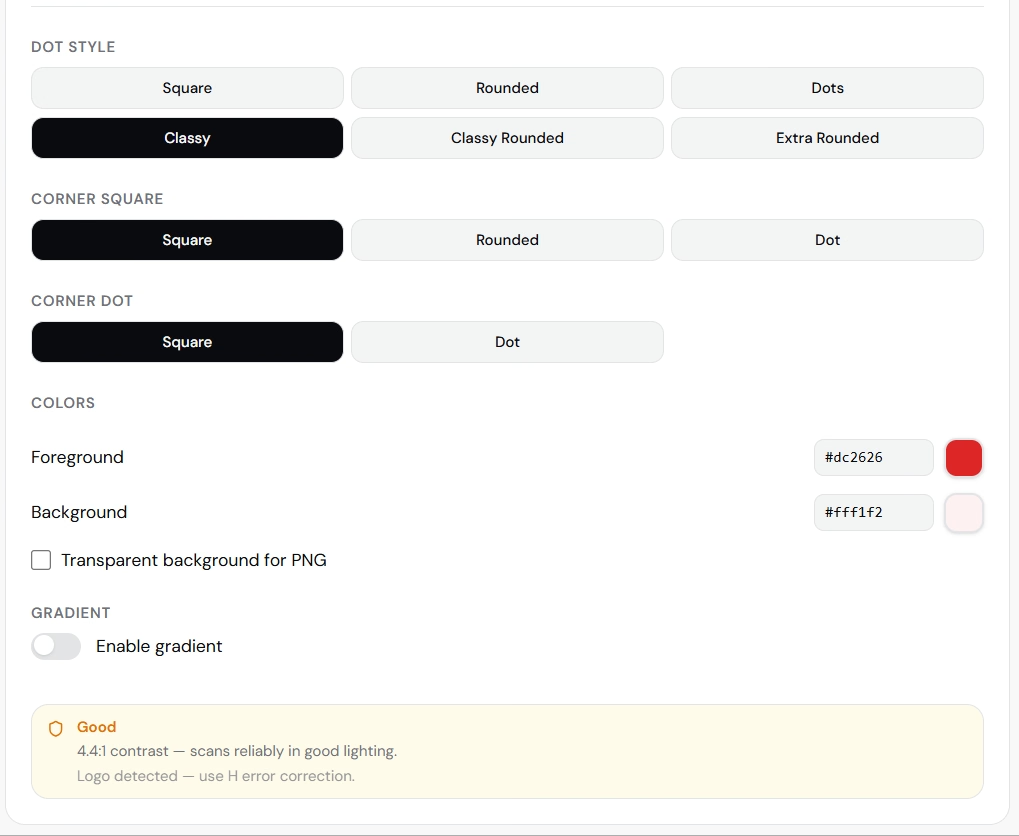
Refine the design carefully and use the scanability feedback to keep the QR code practical.
Step 4: Review the Live Preview and export settings
Before downloading, review the Live Preview panel.
The current interface shows:
- the final QR code preview
- Copy image
- Download PNG
- output format selector
- output size selector
- the encoded destination below the preview
In the current example, the encoding preview starts with a Google Maps URL, confirming that the QR code points to the intended location workflow.
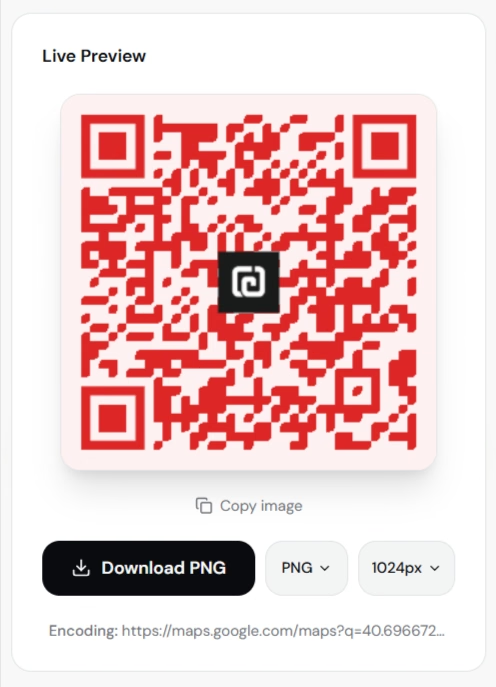
Use the live preview to confirm the final QR design and check the export settings before downloading.
Always test the exported QR code on real devices after you customize colors, shapes, or logos. A location QR code is only useful if it still scans reliably in practical conditions.
Step 5: Download the QR code
After reviewing the design and preview, export the QR code using the generator controls.
Before downloading, check the selected format and image size so the output matches the intended use case, such as:
- posters
- flyers
- real estate signs
- event banners
- reception desks
- parking instructions
Step 6: Test the final QR code
After downloading, scan the QR code with a phone and confirm that:
- the correct location opens
- the coordinates match the intended destination
- the label still makes sense
- the maps app opens as expected
- the QR code remains easy to scan
If the QR code will be printed, also test the physical printed version.
How a location QR code works
A location QR code stores map-related data directly inside the QR pattern.
The QR code contains coordinates
The essential location data is usually latitude and longitude.
The scanner decodes the location
A phone camera or QR scanner reads the QR code and reconstructs the location payload.
A maps app opens the result
A compatible device may open Google Maps or another mapping app that can interpret the location.
The user views or navigates to the location
After scanning, the user can decide what to do next, such as viewing the place or starting navigation.
Can a location QR code open Google Maps?
Yes, often.
Google Maps is a common destination
Many users expect a map-related QR code to open Google Maps.
Behavior can vary by device
Some phones may open a different default mapping app, depending on system settings and installed apps.
The core goal stays the same
The user should be taken to the intended location in a usable maps experience.
Should you use exact coordinates or an address?
For many cases, exact coordinates are more reliable.
Coordinates reduce ambiguity
Two places can share similar names or addresses, but coordinates point to a precise location.
Coordinates are helpful for complex sites
They work especially well for:
- event entrances
- pickup points
- parking areas
- properties
- meeting points
- outdoor locations
Addresses are still useful in the surrounding text
Even if the QR code uses coordinates, visible supporting text can still include the address for clarity.
Why add a label to a location QR code?
A label helps identify the destination more clearly.
It gives context
A generic set of coordinates is harder to interpret than a recognizable label.
It helps users confirm the destination
For example:
New York
or a more specific label such as:
Main Entrance
Keep the label short and clear
The label should support understanding, not replace accurate coordinates.
Location QR code vs URL QR code
These formats can look similar but serve different goals.
Location QR code
Best when the main destination is a physical place.
URL QR code
Best when the destination is a webpage.
Which one should you choose?
Use a location QR code when the goal is “open this place on a map.”
Use a URL QR code when the goal is “open this website.”
Location QR code vs plain text coordinates
A plain text QR code can show coordinates, but it is less convenient.
Plain text QR code
The user may need to copy or interpret the coordinates manually.
Location QR code
A compatible device can treat the data as a location action and open it in a mapping workflow more directly.
Do location QR codes work without internet?
The QR code itself can usually be scanned without internet.
The location data is stored directly
The phone can decode the coordinates locally.
Opening the map may still require connectivity
Viewing tiles, routes, traffic, and full navigation often depends on internet access.
Scanning and map loading are separate steps
The scan can succeed even if the full map experience loads later.
For the broader explanation, read do QR codes work without internet.
Do location QR codes expire?
A static location QR code does not expire by itself.
The coordinates remain fixed
If the destination changes, the QR code still points to the original coordinates.
Printed materials stay static
They do not update automatically.
New destination means a new QR code
If the location changes, generate a replacement QR code.
Can you edit a location QR code later?
Not if it is static.
The coordinates are encoded directly
Changing the location changes the payload.
A new payload requires a new QR code
If the latitude, longitude, or label changes, create a new QR code.
Read can you edit a QR code after creating it.
Location QR codes for events
Events often benefit from map-first instructions.
Venue access
Attendees can open the venue location immediately.
Entrance guidance
A specific location QR code can point to the right entry point.
Parking instructions
A separate location QR code can point to the parking area.
Location QR codes for real estate
Location is one of the strongest use cases.
Property signs
Buyers can open the property location instantly.
Open-house materials
Visitors can save or navigate to the location more easily.
Printed brochures
A brochure can connect printed information with real-world navigation.
Location QR codes for storefronts and businesses
Businesses can use location QR codes in many practical ways.
Storefronts
Customers can open the shop location.
Pickup and delivery points
A location QR code can point to the correct entrance or handoff spot.
Reception areas
It can guide visitors to a branch or nearby office.
Location QR codes for travel and tourism
A location QR code can make travel instructions easier to follow.
Hotels
A hotel confirmation or sign can point to the exact location.
Tour stops
Visitors can scan and open the next destination.
Meeting points
A QR code can simplify group coordination.
Location QR code privacy
A location QR code is not private.
Anyone can scan it
If the QR code is visible publicly, the location is publicly shareable.
Think about what you are exposing
Be careful with:
- private home addresses
- restricted facilities
- internal delivery points
- staff-only entrances
Use public-facing locations when appropriate
A business entrance or public venue point is usually safer than a private location.
How to make a location QR code easy to scan
Keep strong contrast
High contrast helps scanning in different lighting conditions.
Preserve the quiet zone
Leave clear space around the QR pattern.
Avoid over-styling
Custom designs should still scan quickly.
Use the right size
Choose a size appropriate for the final viewing distance.
Test after customization
Always test the final exported QR code after applying colors, logos, or other visual changes.
You can also review QR code best practices and QR code size guide.
How to test a location QR code
Test on iPhone
Scan the code and confirm the location opens correctly.
Test on Android
Repeat the same test on another platform.
Verify the destination
Make sure the map opens to the exact intended place.
Check the label and context
Ensure the label still matches what users expect.
Test the exported file
Do not rely only on the on-screen preview.
Test the printed version
If the QR code will appear on posters, signs, or flyers, scan the real printed copy.
Common location QR code mistakes
Wrong latitude or longitude
A small number error can point to the wrong place.
Missing minus sign
Negative coordinates are critical in many locations, so missing one can break the result.
Vague or confusing label
A label should help, not confuse.
Over-customizing the design
A beautiful QR code is not useful if it becomes hard to scan.
No testing on real devices
Always test on actual phones before publishing.
Good calls to action for location QR codes
Examples include:
- Scan for directions
- Scan to open location
- Scan to find us
- Scan to navigate
- Scan for map
- Scan to open in Google Maps
The best CTA depends on the actual use case and where the QR code appears.
How QR Forge handles location QR codes
QR Forge includes Location as one of its QR Content Types.
Static generation
The coordinates and optional label are encoded directly into the QR code.
No account required
Basic supported QR generation does not require signup.
Customization tools
You can adjust the design inside the same generator.
Scanability guidance
The interface shows helpful feedback about contrast and scan reliability.
Location QR code checklist
Location data
- latitude is correct
- longitude is correct
- label is useful
- coordinates point to the intended destination
QR design
- strong contrast
- quiet zone preserved
- final style remains scan-friendly
- export size matches the use case
Testing
- tested on iPhone
- tested on Android
- correct location opens
- exported file works
- printed version works
How to create a location QR code: final answer
The practical workflow is:
Choose Location
-> Enter latitude and longitude
-> Add an optional label
-> Customize the QR design if needed
-> Download
-> Scan and verify the final result
A location QR code is useful when the next action should be opening a place on a map instead of typing coordinates or searching manually.
Use accurate coordinates, keep the design scan-friendly, and test the final QR code on real devices before printing or sharing it.
Create your location QR code
Generate a static location QR code directly in your browser with no login or watermark.