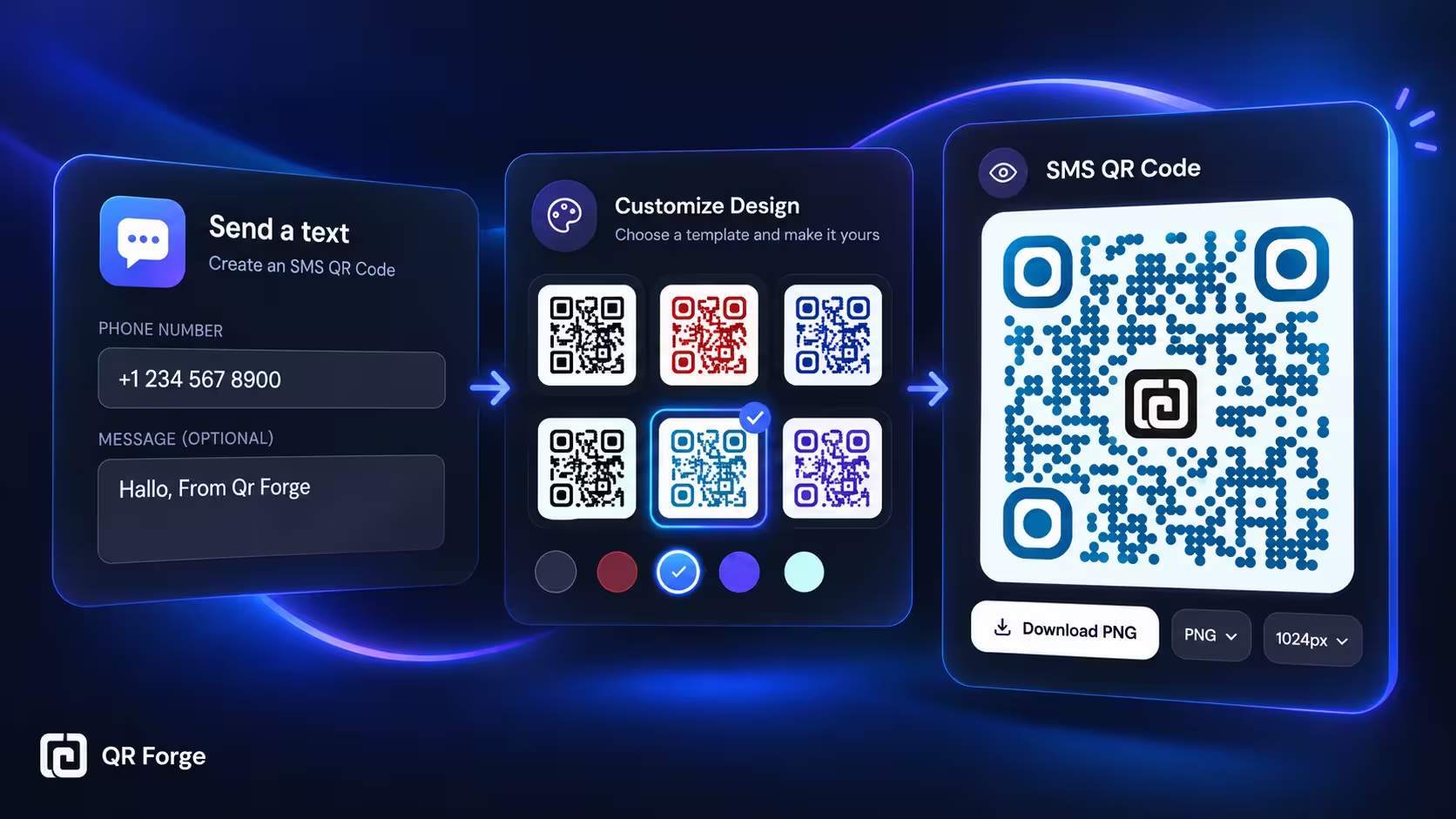
An SMS QR code lets someone start a text message without typing the number or writing the first message manually.
When scanned on a compatible phone, the QR code can open the messaging app with the phone number already filled in and, if you choose, a pre-written message ready to review.
That makes SMS QR codes useful for support requests, appointment confirmations, reservation inquiries, product follow-ups, event communication, lead generation, and other cases where you want to reduce friction before a user sends a text.
Create an SMS QR code
Generate a static QR code that opens a text message action on a compatible device.
What is an SMS QR code?
An SMS QR code is a QR code that stores a text-message action.
It usually uses an SMS action format
At a basic level, the QR payload can point to a text message action that includes:
- a phone number
- an optional message body
It helps users start a message faster
Instead of copying a number and typing the first message by hand, the user scans the QR code and reviews a ready-made draft.
The user still controls sending
An SMS QR code should not silently send a message.
The user should be able to review the recipient and message before sending.
An SMS QR code is a shortcut to a text-message draft. It should prepare the message for the user, not send it automatically.
How to create an SMS QR code in QR Forge
QR Forge includes SMS as one of its QR Content Types, so you can prepare the message action, customize the QR code, preview it, and export it from one screen.
Step 1: Choose SMS and enter the message details
Open the main generator and select SMS in QR Content Type.
Then fill in the SMS details in the Enter your details panel.
In the current QR Forge interface, the SMS form includes:
- PHONE NUMBER
- MESSAGE (OPTIONAL)
The example shown in the interface uses:
+1 234 567 8900
for the phone number and:
Hallo, From Qr Forge
for the optional message body.
It is best to use a full international number format whenever possible, especially if the QR code may be scanned by users from different countries.
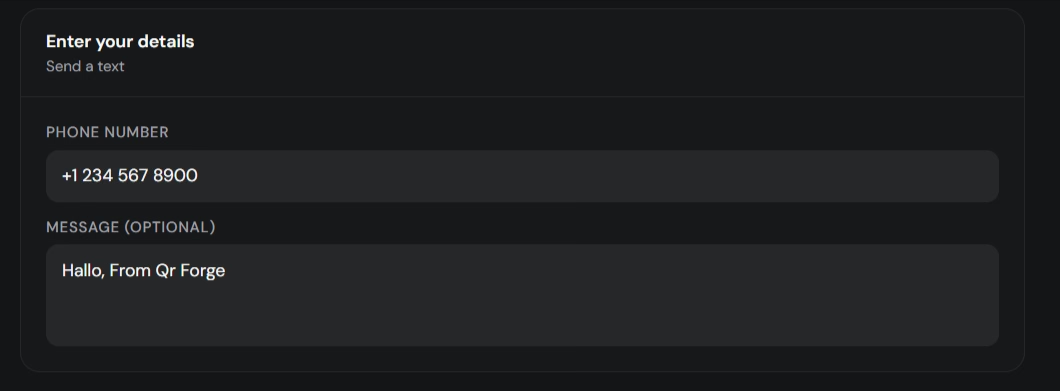
Enter the phone number and an optional pre-filled message to prepare the SMS action.
Step 2: Customize the QR design
After entering the SMS details, you can customize how the QR code looks.
QR Forge supports several customization areas in the same generator, including:
- Style
- Logo
- Size & QR
- Templates
- Batch
- Tools
- Randomize
In the screenshot example, the Templates tab is open and shows the Template Gallery with ready-made styles such as:
- Classic Menu
- Warm Bistro
- Modern Counter
- WiFi Clean
- Signal Blue
- Guest Indigo
- Card Minimal
- Card Indigo
- Card Inverse
This does not mean templates are the only customization path. You can start from a template, then continue adjusting the design manually as needed.
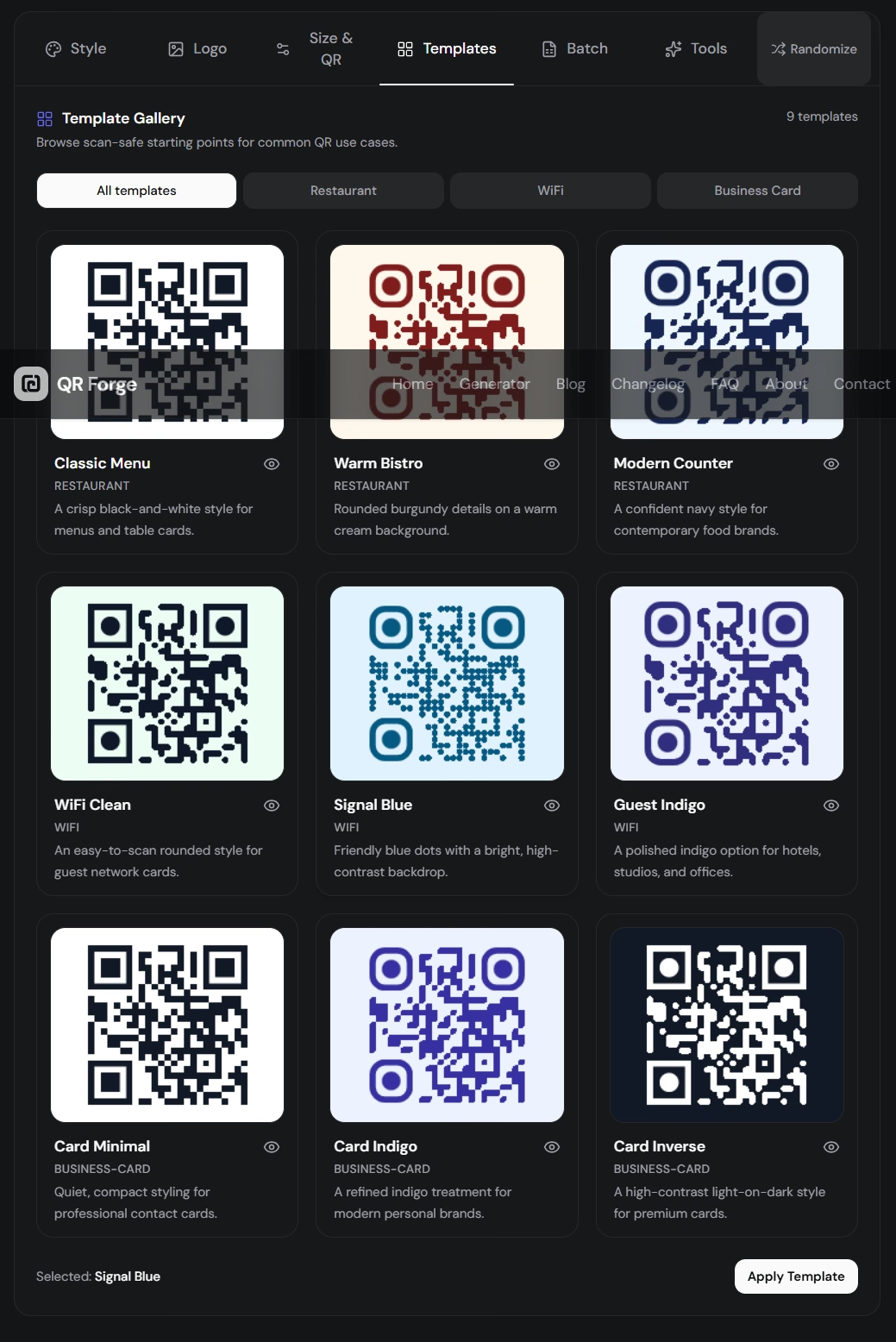
Customize the QR code manually or start from a ready-made template in the Template Gallery.
Step 3: Review the Live Preview and export settings
Use the Live Preview panel to review the final SMS QR code before exporting it.
The current interface shows:
- the final QR code preview
- Copy image
- Download PNG
- format selector
- size selector
- the encoded SMS action below the preview
In the example shown, the encoded action starts with:
sms:+1 234 567 8900?body=Hallo%2C%20Fro...
This helps verify that the QR code is preparing the correct SMS workflow.
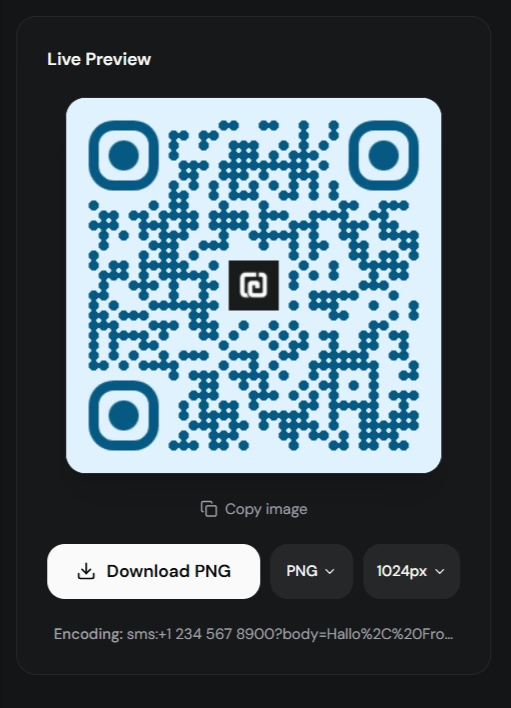
Check the live preview, verify the encoded SMS action, and review the export settings before downloading.
Step 4: Download the QR code
Use the download button in the Live Preview panel.
Before exporting, review the selected output format and image size. Choose settings that match where the QR code will be used, such as a poster, sign, flyer, business card, or package insert.
Step 5: Test the final QR code
After downloading, scan the QR code with a phone and confirm that:
- the correct messaging app opens
- the recipient number is correct
- the optional message is correct
- the user can still edit the message
- the user can cancel before sending
If the QR code will be printed, also test the physical print.
How an SMS QR code works
The QR code stores a message action as encoded data.
Basic action
At the simplest level, the QR code points to a phone number for SMS.
Optional message body
It can also include a pre-filled message body.
The phone interprets the SMS action
When a compatible phone scans the QR code, it recognizes the payload and may open the default messaging app with a draft prepared.
The user confirms the message
The message is not automatically sent.
The user still decides whether to send it.
Does an SMS QR code send a message automatically?
Normally, no.
Scanning is not the same as sending
The QR code prepares the text-message action.
The messaging app opens a draft
The phone may open a message draft with the number and optional message already filled in.
User control still matters
The user should still be able to edit or cancel before sending.
Should you include a pre-filled message?
Often yes, but keep it short.
Good reasons to pre-fill a message
A short pre-filled message can:
- reduce friction
- clarify intent
- improve lead quality
- make support requests more structured
Example use cases
Examples include:
Hello, I would like to book an appointment.
Hi, I need support with my order.
Hello, I would like more information.
Keep the message flexible
Do not make the message too long or too rigid. Users should be able to personalize it easily.
Should you use the country code?
In most public use cases, yes.
International format reduces ambiguity
A local number can be misread or become inconvenient for users from another country.
It is better for public-facing QR codes
If the QR code appears on packaging, signage, or online materials, a full international format is usually safer.
Example
Instead of:
0812...
prefer:
+62812...
when the QR code may be scanned by a broader audience.
SMS QR code vs phone QR code
These formats support different actions.
SMS QR code
Best when the goal is to start a text message.
Phone QR code
Best when the goal is to place a voice call.
Choose the intended communication channel
If the desired action is messaging, use SMS instead of Phone.
SMS QR code vs WhatsApp QR code
SMS and WhatsApp may seem similar, but they lead to different user experiences.
SMS QR
Opens a text-message workflow.
WhatsApp QR
Opens WhatsApp and may prepare a chat message.
Choose based on audience behavior
Use SMS when a standard text message is more universal or operationally required.
Use WhatsApp when chat-based communication is the preferred path.
SMS QR code vs plain text number
You could encode a number and message as plain text, but it is less convenient.
Plain text QR code
The scanner may only display text that the user must copy manually.
SMS QR code
The device recognizes the payload as a messaging action and can open a message draft directly.
Do SMS QR codes work without internet?
The QR code itself can be scanned offline.
The payload is stored directly
The phone does not need to contact a website just to decode the SMS action.
Sending depends on service
A normal SMS depends on mobile network service or another supported messaging method on the device.
Scanning and sending are separate steps
The scan can succeed even if the message cannot be sent immediately.
For the broader explanation, read do QR codes work without internet.
Do SMS QR codes expire?
A static SMS QR code does not expire by itself.
The number must remain valid
If the destination number changes or is deactivated, the QR code still points to the old number.
Printed materials stay static
They do not update themselves automatically.
New number or message means a new code
If the message workflow changes, generate a new QR code.
Can you edit an SMS QR code later?
Not if it is static.
The number and optional message are encoded directly
Changing either one changes the QR payload.
A new payload needs a new QR code
If the destination number or message changes, generate a replacement QR code.
Read can you edit a QR code after creating it.
SMS QR codes for customer support
SMS can be a useful support channel when users need a quick low-friction way to make contact.
Packaging and inserts
A product insert can prompt users to text support.
Store counters
Customers can scan to message service staff.
Field services
Technicians or delivery services can use SMS QR codes for quick text-based contact.
SMS QR codes for bookings and reservations
An SMS QR code can work well when a business accepts bookings by text.
Restaurants
Users can send a booking request by SMS.
Clinics and service businesses
Users can start a scheduling inquiry.
Keep the message short
A concise pre-filled prompt is usually better than a long script.
SMS QR codes for events
Event organizers can use SMS QR codes for fast attendee communication.
Registration support
Attendees can text for help.
Venue support
A sign can direct users to text the team.
Emergency fallback contact
SMS can sometimes work when data-based apps are less practical.
SMS QR codes for posters and flyers
Printed marketing can use SMS QR codes when messaging is the main conversion goal.
Good calls to action
Examples include:
- Scan to text us
- Scan to book by SMS
- Scan to request info
- Scan to text support
- Scan to reserve by text
Match the QR code with visible instructions
The label should clearly explain what happens after scanning.
SMS QR code privacy
The encoded recipient number and message are not private.
Anyone can inspect the QR code
A QR code can be scanned or decoded by anyone who sees it.
Avoid sensitive pre-filled content
Do not encode passwords, personal secrets, or private customer data in the message body.
Use a business number when possible
This is usually better for public-facing materials.
SMS QR code security
An SMS QR code is a communication shortcut, not a security layer.
The QR code can be copied
Anyone can photograph or duplicate it.
Message content is not protected by the QR code itself
Use normal business processes to validate identity if sensitive issues are involved.
How to make an SMS QR code easy to scan
Keep strong contrast
Dark modules on a light background remain a reliable default.
Preserve the quiet zone
Leave clear space around the QR pattern.
Avoid over-styling
Templates and styling are useful, but the final code still needs to scan quickly.
Use a suitable size
Pick a size appropriate for the final print or display distance.
Test after customization
Always test the exported QR code after applying a template, color scheme, logo, or other visual change.
How to test an SMS QR code
Test on iPhone
Scan the QR code and confirm the draft opens correctly.
Test on Android
Repeat the test on another platform.
Verify the recipient number
Make sure every digit is correct.
Verify the message body
Check punctuation, spacing, and wording.
Test the exported file
Do not rely only on the on-screen preview.
Test the printed copy
If the QR code will appear on physical materials, scan the actual print.
Common SMS QR code mistakes
Wrong phone number
A small typo can send users to the wrong recipient.
Message body is too long
Long pre-filled text creates friction and can make the workflow feel rigid.
No country code
International users may have trouble using the number.
Over-customizing the design
Decorative styling can hurt scanability if not tested.
No call to action
Users should know that the QR code starts an SMS.
No real-device testing
Always test on actual phones before publishing.
Good calls to action for SMS QR codes
Examples include:
- Scan to text us
- Scan to send a message
- Scan to book by SMS
- Scan to request support
- Scan to text the team
- Scan to reserve
Choose a CTA that matches the actual workflow.
How QR Forge handles SMS QR codes
QR Forge includes SMS as a QR Content Type.
Static generation
The phone number and optional message are encoded into the QR code.
No account required
Basic supported QR generation does not require signup.
Customization tools
You can customize the design using styles, templates, and other controls in the generator.
Live Preview
The generator lets you inspect the final QR code and export settings before downloading.
SMS QR code checklist
Message setup
- phone number is correct
- country code is correct
- message body is useful
- message body is concise
- public-facing number is appropriate
QR design
- strong contrast
- suitable size
- quiet zone preserved
- styling remains scan-friendly
- final export is sharp
Testing
- tested on iPhone
- tested on Android
- correct messaging app opens
- correct recipient appears
- correct message appears
- exported file works
- printed version works
How to create an SMS QR code: final answer
The practical workflow is:
Choose SMS
-> Enter the phone number
-> Add an optional message
-> Customize the QR design if needed
-> Review Live Preview
-> Download
-> Scan and verify the final result
An SMS QR code is useful when the next step should be a text message instead of a phone call or web visit.
Keep the number accurate, keep the message short, make the QR code easy to scan, and always test the final exported version before printing or publishing it.
Create your SMS QR code
Generate a static SMS QR code directly in your browser with no login or watermark.