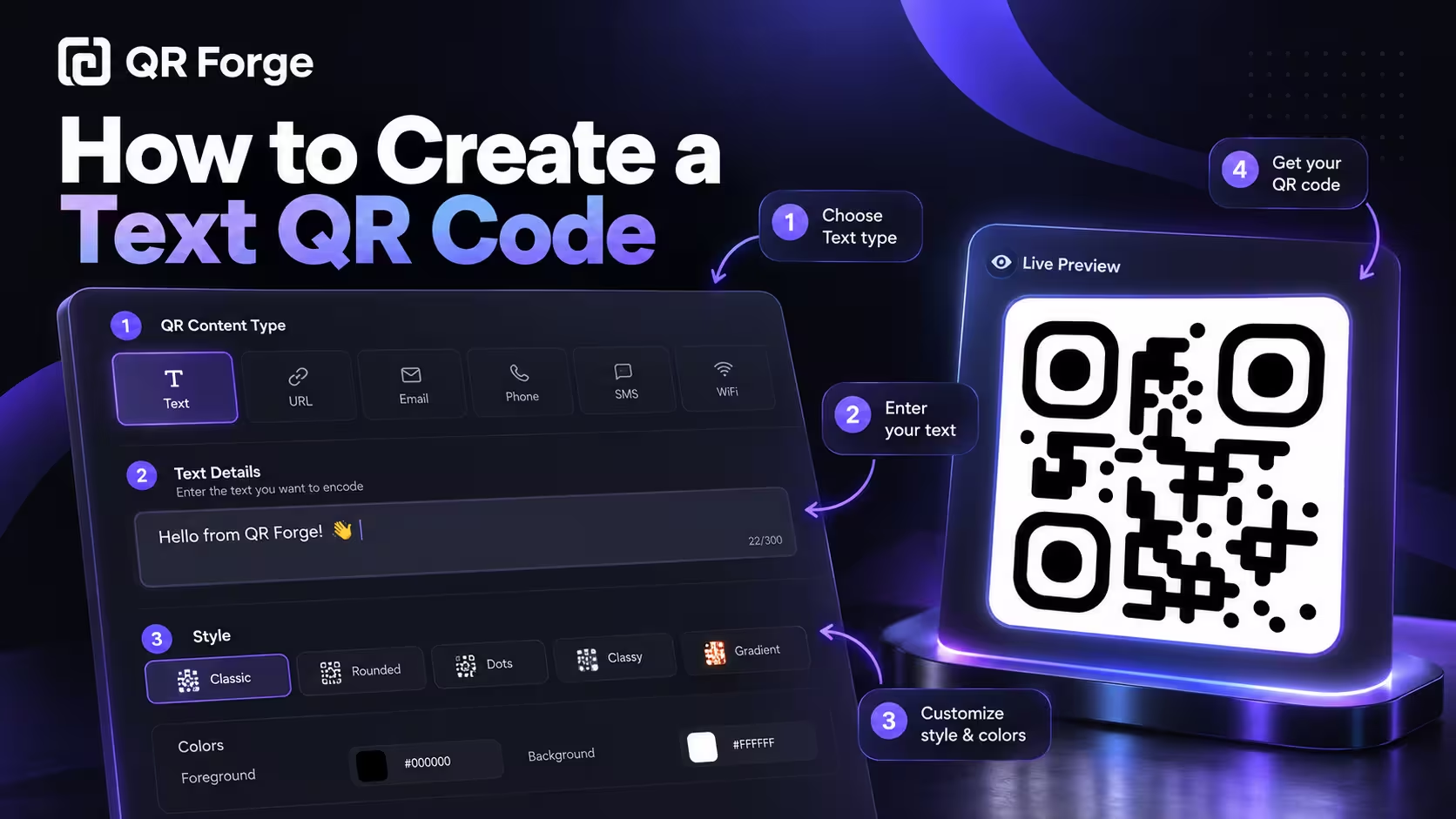
A text QR code lets you store plain text directly inside a QR pattern.
Unlike a website QR code, it does not need to open a browser or contact a server just to show the content. The text is encoded directly into the QR code itself.
That makes text QR codes useful for short instructions, reference numbers, equipment labels, offline notes, event information, product details, and other situations where you want someone to scan and immediately read a message.
Create a text QR code
Convert plain text into a scannable QR code directly in your browser.
What is a text QR code?
A text QR code is a static QR code that contains plain text as its payload.
The text is inside the QR code
For example:
Meeting Room B
Second Floor
Access Code: 4812
When someone scans it, the device can display the message directly.
No website is required
The user does not need to visit a landing page just to read the text.
No redirect is required
A plain text QR code does not need a provider-managed redirect.
A text QR code stores the message directly in the QR pattern, which makes it useful for simple information that should remain readable even without an internet connection.
How to create a text QR code in QR Forge
QR Forge keeps text QR creation in the main generator, so you can create, style, preview, and export the code from one screen.
Step 1: Select Text in QR Content Type
Open the generator and find QR Content Type.
Choose Text from the available content types. In the current interface, the selector also includes URL, Email, Phone, SMS, WhatsApp, WiFi, Contact, and Location.
After selecting Text, QR Forge shows the Text Details panel with a plain-text input.
Step 2: Enter the text you want to encode
Type or paste your message into the TEXT field.
For example:
Meeting Room B
Second Floor
Access Code: 4812
The Live Preview appears on the right, so you can immediately see the generated QR code while editing the content.
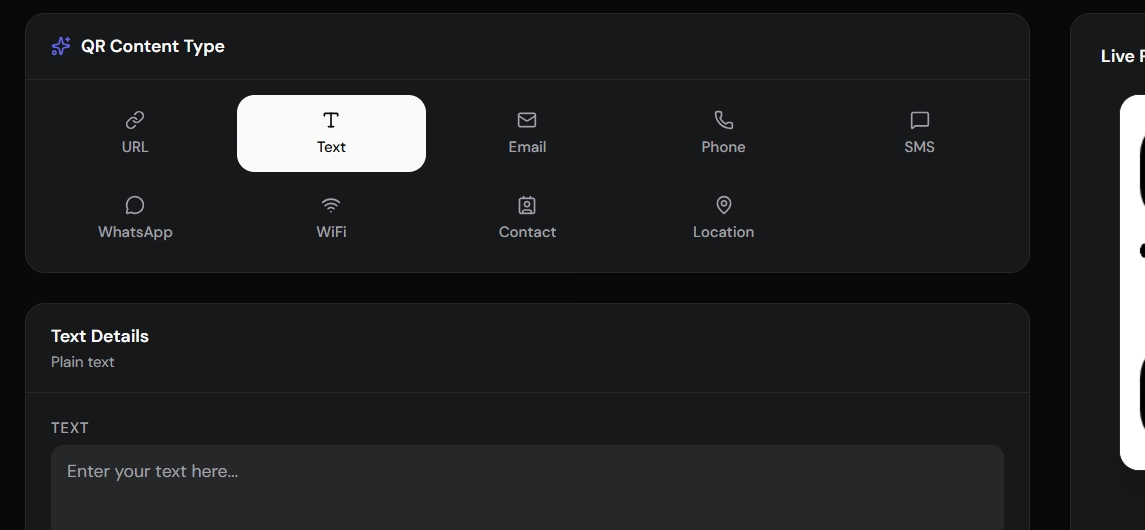
Select Text, enter the message in Text Details, and review the generated QR code in Live Preview.
Step 3: Choose a style preset
Open the Style tab below the content editor.
The current QR Forge interface includes presets such as:
- Classic Black
- Soft Rounded
- Ocean Blue
- Neon Gradient
- Corporate Dark
- Minimal Light
- Sunset Gradient
- Tech Purple
A preset is a quick starting point. You can still fine-tune the QR code afterward.
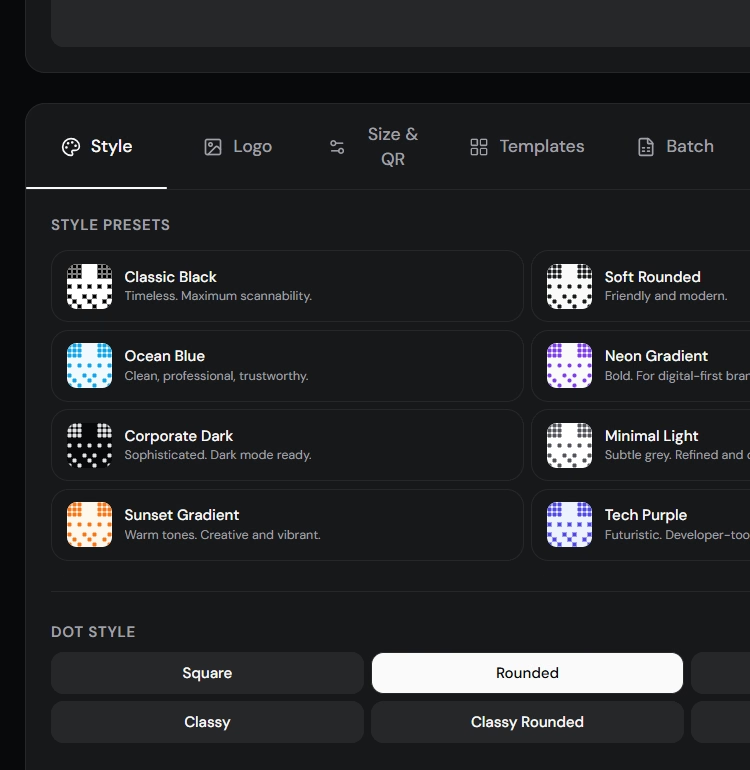
Use a preset or customize the dot and corner styles manually.
Step 4: Customize dots and corners
Under the same Style tab, you can change the QR geometry.
The current Dot Style options include:
- Square
- Rounded
- Dots
- Classy
- Classy Rounded
- Extra Rounded
For Corner Square, the available options include:
- Square
- Rounded
- Dot
For Corner Dot, you can choose:
- Square
- Dot
Keep the three finder-pattern corners visually clear and test the final result after making style changes.
Step 5: Adjust foreground, background, and transparency
The Colors section lets you edit the foreground and background colors.
The current interface also provides:
- Transparent background for PNG
- Enable gradient
QR Forge displays a contrast status below these controls. In the example interface, black on white produces an Excellent rating with a 21.0:1 contrast ratio.
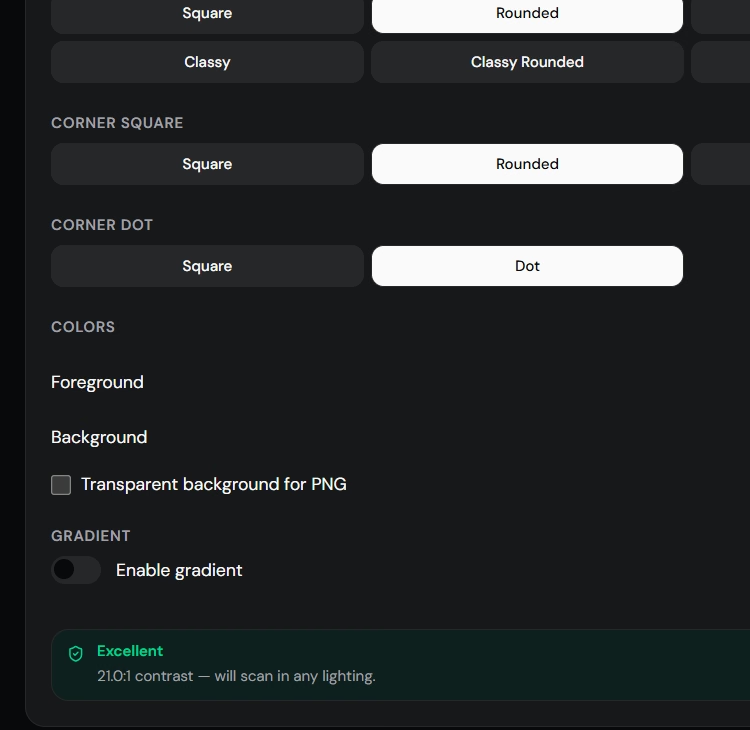
Keep strong contrast between the QR modules and background so the code remains easy to scan.
Styling is optional. If reliability matters more than branding, a simple dark QR code on a light background remains a strong default.
Step 6: Use the other customization tabs when needed
Alongside Style, the current generator includes tabs for:
- Logo
- Size & QR
- Templates
- Batch
- Tools
There is also a Randomize control.
You do not need to use every option for a simple text QR code. Start with the text itself, then customize only what improves the final use case.
Step 7: Check the Live Preview
Before downloading, inspect the Live Preview on the right.
Make sure:
- the QR code is visually clear
- the text payload is final
- the contrast remains strong
- styling has not made the pattern difficult to recognize
You can also use Copy image when you want to copy the rendered QR directly.
Step 8: Download the QR code
Use Download PNG in the Live Preview panel.
The interface also provides adjacent controls for the output format and image size. In the example shown here, the selected settings are PNG and 1024px.
Choose the export settings appropriate for where the QR code will be used.
Step 9: Scan the downloaded file
Do not stop at the preview.
Open the exported QR code and scan it with a phone to confirm that:
- the full text appears
- line breaks are acceptable
- numbers and punctuation are correct
- no characters were accidentally changed
If the QR code will be printed, test the actual printed version too.
What can you put in a text QR code?
Almost any plain text can be encoded if it fits within QR capacity.
Instructions
Turn off the main switch before opening this panel.
Reference numbers
ASSET-ID: WH-04-2187
Event information
Workshop A
Room 204
Starts at 10:30 AM
Contact notes
Reception Desk
Extension 214
Product information
A text QR code can contain short product notes or handling instructions.
When should you use a text QR code?
Text QR codes are best when the information itself is the destination.
Use text QR when
- the message is short
- no website is needed
- offline access is useful
- the content is unlikely to change
- you want the user to read information immediately
Use a URL QR instead when
- the content is long
- the information changes frequently
- you need images or video
- the user needs interactive content
- you want a full webpage
For web destinations, see how to create a QR code for a website URL.
Do text QR codes work without internet?
Yes.
The content is embedded directly
The phone does not need to download the text from a server.
Scanning can happen offline
A compatible QR scanner can decode the message locally.
Scanner interfaces may vary
The exact presentation depends on the phone and scanner application.
For more detail, read do QR codes work without internet.
How much text can a QR code hold?
QR codes can technically store thousands of characters depending on encoding mode, QR version, and error correction.
Maximum capacity is not the goal
A code packed close to its limit becomes very dense.
Dense codes are harder to print small
Modules become smaller at the same physical size.
Shorter is usually better
For several paragraphs or pages of content, a webpage and URL QR code will usually provide a better experience.
Read how much data can a QR code store for technical limits.
Why long text creates a denser QR code
Every additional character needs storage.
More data means more modules
As the payload grows, the generator may need a larger QR version.
More modules create visual complexity
The code contains more small squares.
Physical size matters
A dense code needs enough printed or displayed space to keep each module readable.
Text QR code vs URL QR code
Text QR code
The message itself is encoded:
Scan
-> Read text
URL QR code
The code contains a website address:
Scan
-> Open browser
-> Load webpage
Use text for compact offline information and a URL for richer or frequently updated content.
Text QR code vs vCard QR code
A vCard is better for structured contact information.
Plain text contact details
The scanner may only display the information, leaving the user to copy it manually.
vCard QR code
A compatible phone can recognize the payload as contact data and offer to save it.
Read how to create a vCard QR code.
Text QR code vs WiFi QR code
A WiFi QR code uses a structured payload designed for network credentials.
Plain text WiFi details
A user may have to type the password manually.
WiFi QR format
A compatible phone can offer a direct join action.
Use the specialized format when joining the network is the goal.
Can you edit a text QR code later?
No, not if it is a static text QR code.
The text determines the pattern
Changing the message changes the encoded payload.
New text requires a new code
Generate another QR code with the updated content.
For more detail, see can you edit a QR code after creating it.
Do text QR codes expire?
A static text QR code does not expire by itself.
No domain is involved
The message is inside the QR code.
Physical damage can still matter
A printed code can become difficult to scan if it fades, tears, scratches, or becomes dirty.
Are text QR codes private?
Not inherently.
Anyone with access can scan it
If someone can see the QR code, they may be able to read the message.
Do not treat it as encrypted storage
Avoid putting secrets inside a normal text QR code.
Avoid sensitive information
Do not encode:
- passwords
- private keys
- recovery phrases
- confidential personal data
- security answers
- private credentials
Good uses for text QR codes
Equipment labels
A QR code can contain an asset number, model, short maintenance note, or internal reference.
Keep essential information short
A URL is better for detailed documentation.
Warehouses
Use text QR codes for rack IDs, bin references, location codes, or short picking notes.
Offline benefit
The identifier can be decoded in areas with poor connectivity.
Classrooms
A teacher can encode a short exercise, question, instruction, answer code, or station label.
Events
Text QR codes can contain a room number, session title, check-in reference, or short instruction.
For frequently changing schedules, use an online page.
Museums and exhibitions
A text QR code can provide a short caption or reference.
Detailed stories, images, audio, and video are better served by a webpage.
Product labels
A text QR code may contain a short batch reference or handling note.
Do not replace legally required visible labeling with a QR code.
Emergency and safety information
QR codes can supplement visible instructions.
Critical safety information should remain readable without requiring a phone.
How to format text before generating a QR code
Use short lines
Line breaks can improve readability.
Put important information first
Users may scan quickly.
Use simple punctuation
Plain formatting is more universally readable.
Avoid unnecessary spaces
Extra content increases payload size.
Can text QR codes include emoji?
Often yes, depending on text encoding support.
Emoji use more bytes
They can increase payload size faster than basic ASCII characters.
Compatibility may vary
Display depends on device and font support.
Keep critical meaning in normal text
Do not rely on emoji alone for important information.
Can text QR codes include multiple languages?
Yes, when the generator and scanner support the required text encoding.
Unicode increases byte usage
Some scripts require more bytes per character.
Test target devices
Multilingual payloads should be tested on devices your audience is likely to use.
How to make a text QR code easy to scan
Use enough size
Do not print a dense code too small.
Keep strong contrast
Dark modules on a light background remain the safest option.
Preserve the quiet zone
Leave clear space around the QR code.
Avoid distortion
Keep the image square.
Use a clean export
PNG or SVG can preserve crisp module edges.
How to test a text QR code
Test on iPhone
Confirm that the text appears correctly.
Test on Android
Check the same payload on another platform.
Verify all characters
Check punctuation, numbers, line breaks, and special characters.
Test offline
Disable connectivity to confirm the message does not depend on a website.
Test the printed copy
If the QR code will be printed, scan the physical version.
Common text QR code mistakes
Encoding too much text
Long payloads create unnecessarily dense QR codes.
Using text when a structured format exists
Use vCard for contact saving and WiFi format for network joining.
Storing sensitive secrets
QR codes are not private vaults.
Printing too small
Dense codes need enough physical space.
Not checking the final message
A typo becomes part of the static code.
Expecting remote editing
Static text cannot be changed after printing.
How QR Forge handles text QR codes
QR Forge is designed around simple client-side static QR generation.
Text is encoded directly
The message becomes the QR payload.
No account required
You can create a supported text QR code without signup.
No forced redirect
Plain text does not need a web redirect.
No watermark
The generated QR output is designed to remain clean.
Offline-friendly output
Once generated, the text can be decoded from the QR pattern without contacting QR Forge.
Text QR code checklist
Content
- text is correct
- message is concise
- no sensitive secrets are included
- line breaks are intentional
- spelling and numbers are verified
Design
- QR code is large enough
- contrast is strong
- quiet zone is preserved
- image is not stretched
- export is sharp
Testing
- scans on iPhone
- scans on Android
- all text is displayed
- special characters work
- offline scan is successful
- printed version has been tested
How to create a text QR code: final answer
Creating a text QR code is simple:
Write the text
-> Open the text QR generator
-> Enter the message
-> Generate the QR code
-> Download it
-> Test the final version
Because the text is stored directly in the QR pattern, it can be read without opening a website and can work without internet.
Keep the message concise, avoid sensitive information, use enough physical size, and test the QR code before printing or sharing it.
Create your text QR code
Convert plain text into a static QR code directly in your browser with no login or watermark.