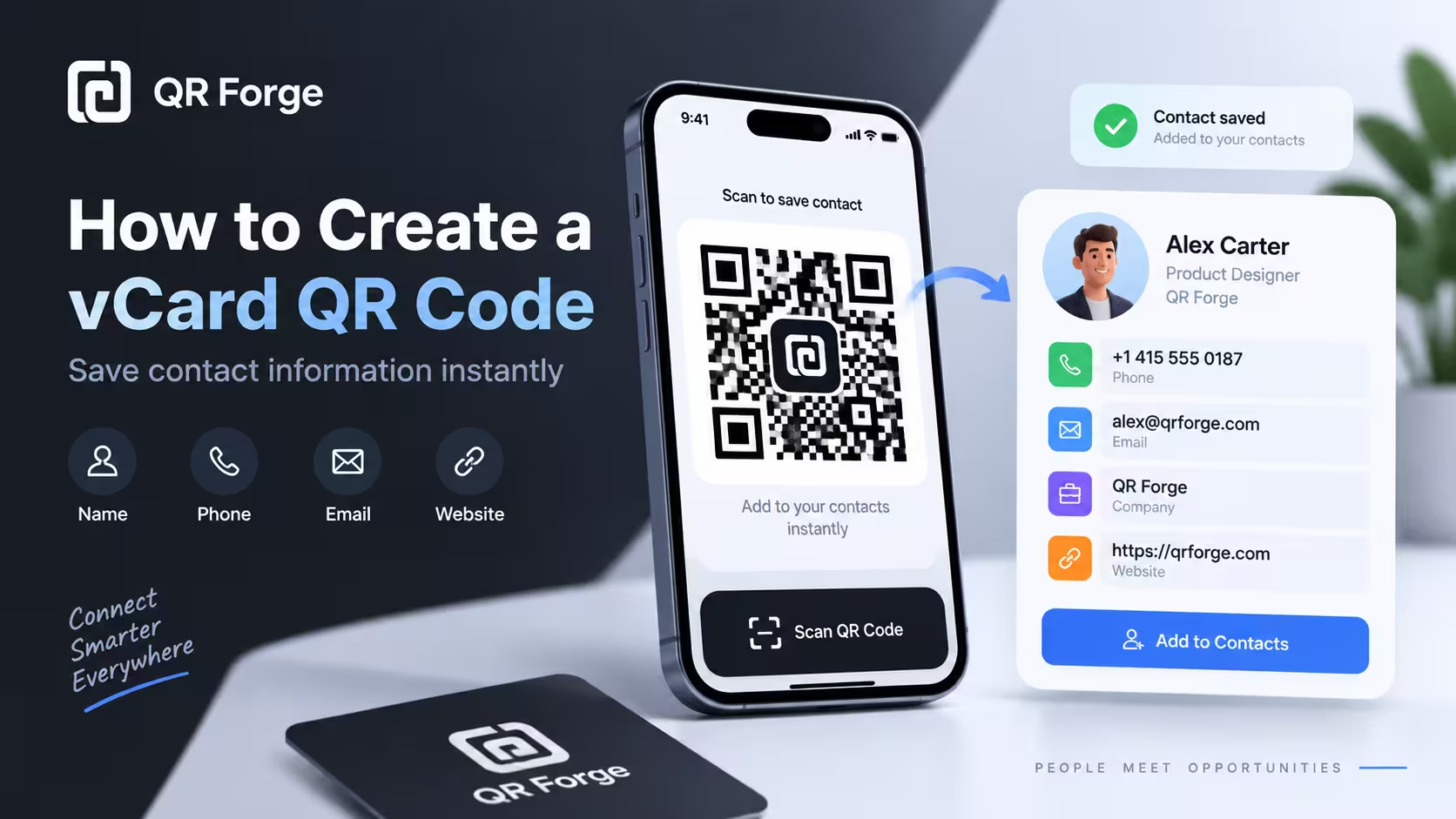
A vCard QR code lets someone scan your contact information and save it to their phone without typing every detail manually.
It is useful for business cards, networking events, conferences, email signatures, portfolios, office signs, sales materials, and professional profiles.
Instead of asking someone to copy your phone number, email address, company name, and website one field at a time, you can put the information into one scannable QR code.
Create a vCard QR code
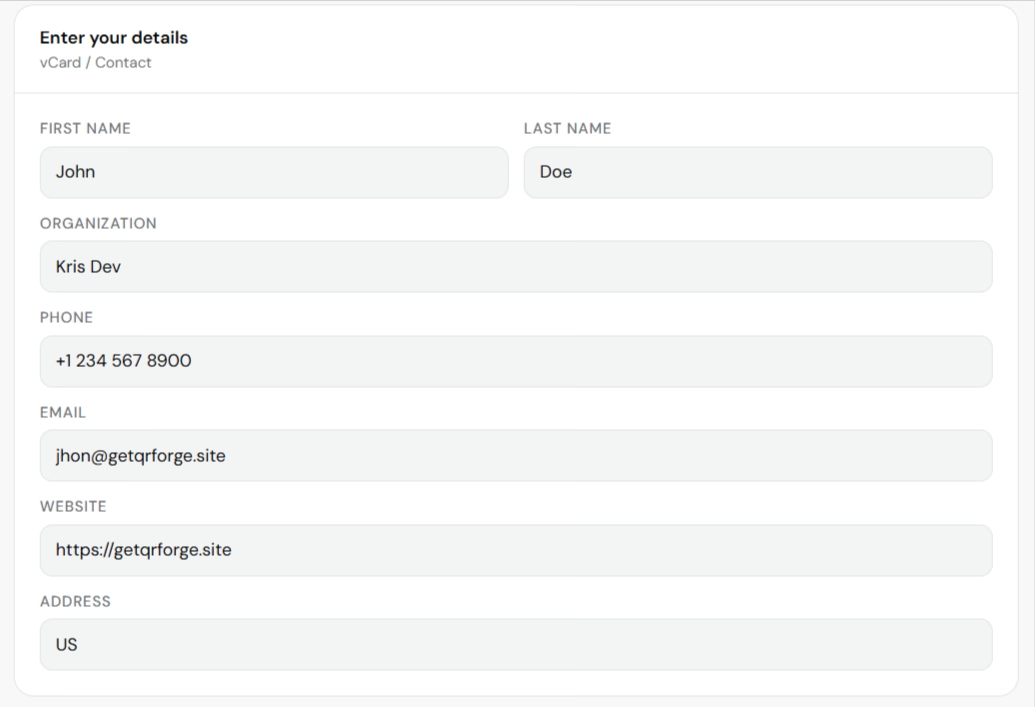
Generate a contact QR code for your name, phone number, email, company, website, and other professional details.
What is a vCard QR code?
A vCard QR code is a QR code that contains contact information in a structured format.
When someone scans it with a compatible phone, the device can recognize the data as a contact and offer an option to save it.
Information a vCard can contain
A vCard may include:
- full name
- phone number
- email address
- company
- job title
- website
- office address
- other supported contact fields
You do not need to fill every field.
Why use a vCard instead of plain text?
A plain text QR code can display contact details, but the user may still need to copy them manually.
A vCard gives the phone structured contact data that can be added to the address book more easily.
Why create a vCard QR code?
A vCard QR code reduces friction when sharing contact information.
Faster contact saving
Instead of typing your name, number, and email manually, the recipient can scan and review the contact.
Fewer typing mistakes
Long email addresses, international phone numbers, and company names are easy to mistype.
A QR code avoids most of those errors.
Useful for offline networking
A printed business card can connect directly to a digital contact record.
This works well at meetings, exhibitions, conferences, and networking events.
More information without clutter
A business card has limited space.
A vCard QR code can contain additional contact details while the printed design remains clean.
How to create a vCard QR code
Creating a vCard QR code is straightforward, but you should prepare the information carefully before generating it.
Step 1: Decide what information to share
Start with the fields that matter most.
For a professional contact, this may include:
- first and last name
- work phone number
- work email
- company
- job title
- website
Avoid adding information that does not need to be public.
Step 2: Check your contact details
Verify spelling, phone numbers, domain names, and email addresses.
Once a static vCard QR code is printed, the encoded information cannot be edited.
Step 3: Open the vCard QR code generator
Enter your contact information into the relevant fields.
Use professional information when the QR code will be shared publicly.
Step 4: Generate the QR code
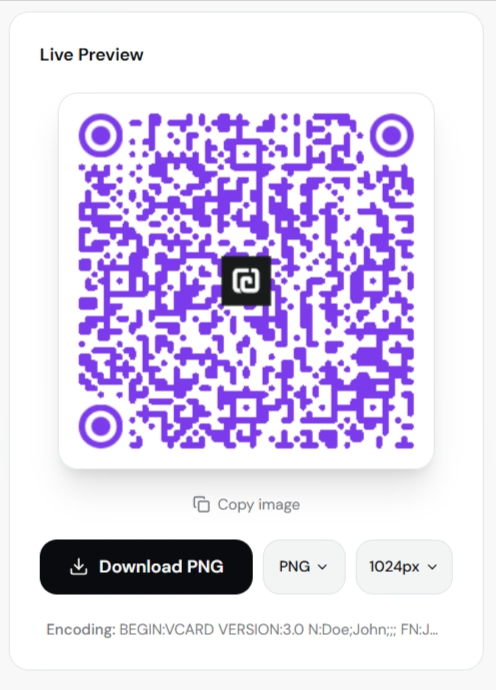
Generate the QR code and check the preview.
The pattern may become denser as you add more contact fields.
Step 5: Download the QR code
Download a clean, high-quality version.
PNG is practical for most uses. SVG is useful when the code needs to be resized in a professional design workflow.
Step 6: Test it on a phone
Scan the code and check every field before publishing or printing it.
Make sure the phone recognizes the contact correctly.
Always scan your vCard QR code and review every contact field before printing it. A typo in an email address or phone number will be encoded into the static QR code too.
What information should you include?
More information is not always better.
The best vCard QR code contains enough information to be useful without exposing unnecessary personal details.
Name
Use the name people should save in their contacts.
Phone number
Use a number you are comfortable sharing with anyone who can access the QR code.
For public business materials, a work or business number is usually better than a private personal number.
Email address
Use a current email address that you actively monitor.
Company and job title
These fields add context, especially after conferences and networking events.
Website
You can include your website, portfolio, company page, or another stable professional URL.
Address
Only include an address when it is useful and appropriate.
Avoid publishing a private home address unintentionally.
What should you leave out?
Treat a public vCard QR code as public information.
Private home information
Avoid including a private home address when the code is distributed publicly.
Personal phone number
If you have a separate business number, consider using it instead.
Internal company information
Do not encode private extensions, internal URLs, employee identifiers, or other information meant only for coworkers.
Information you expect to change soon
If your role, number, domain, or company is about to change, avoid printing a large batch with outdated information.
vCard QR code for business cards
One of the most useful places for a vCard QR code is a business card.
Keep important information visible
Do not hide everything inside the QR code.
Your card should still show key details such as your name, role, company, and at least one contact method.
Add a clear call to action
Use a label such as:
Scan to save my contact
Use a practical size
For close-range use such as a business card, around 2 x 2 cm is a practical starting point.
Read the QR code size guide for more detail.
Follow business card best practices
Also review how to use QR codes on business cards.
vCard QR codes for networking events
Conference badges
A badge can include a contact QR code so people can save your details after a conversation.
Booth signs
Sales teams and exhibitors can use QR codes on counters or booth displays.
Presentation slides
Speakers can add a contact QR code to the final slide.
Make the code large enough for people farther from the screen.
Printed handouts
Add the QR code to brochures, speaker notes, or product sheets.
vCard QR code for email signatures
A QR code can appear in an email signature, although a clickable link may be more convenient on mobile.
When it helps
It can be useful when someone reads email on desktop and wants to save the contact using a phone.
Keep the image readable
Do not let the QR code dominate the signature.
Include normal contact text too
Phone numbers, email addresses, and website links should remain clickable when possible.
vCard QR code for portfolios and resumes
Printed portfolios
Add the QR code near your contact section.
Resumes
A QR code may connect the printed resume to your contact details, portfolio, or website.
Creative work
Designers, photographers, developers, writers, and freelancers can use it as a networking shortcut.
Static vCard QR codes
For most simple contact sharing, a static vCard QR code is enough.
How it works
The contact data is stored directly in the QR pattern.
Benefits
A static contact QR code:
- does not require a subscription
- does not need a tracking redirect
- stores the contact directly
- does not expire by itself
- remains usable after downloading
Main limitation
The information cannot be edited after the code has been created.
If your phone number or email changes, you need a new QR code.
For a deeper comparison, see static vs dynamic QR codes.
Do vCard QR codes work without internet?
A static vCard QR code can generally be read without an internet connection because the contact data is stored directly in the QR code.
Saving basic contact information
Fields such as name, phone number, and email can be read from the code itself.
Opening a website still needs internet
If the vCard contains a website, internet access is needed when the user opens that website.
Device behavior may vary
The exact interface depends on the phone, operating system, camera app, and QR scanner.
Test on multiple devices when the code will be widely distributed.
vCard QR code privacy
Contact QR codes can contain personal information.
The data is visible to scanners
A static vCard QR code is not encrypted just because it looks like a pattern.
Share only public information
Use fields you would be comfortable sharing with the intended audience.
Prefer professional contact details
For public marketing and networking materials, use professional contact details when possible.
Avoid unnecessary data
If a field does not help the recipient contact you, consider leaving it out.
How QR Forge handles vCard generation
QR Forge is designed around privacy-first, client-side QR generation.
Browser-based generation
Basic QR code generation is designed to happen in your browser.
No account required
You do not need to create an account to generate a basic vCard QR code.
No watermark
The generated QR code is not designed to include a forced watermark.
No forced tracking redirect
A simple static vCard does not need scan analytics or a redirect layer to work.
Design best practices for contact QR codes
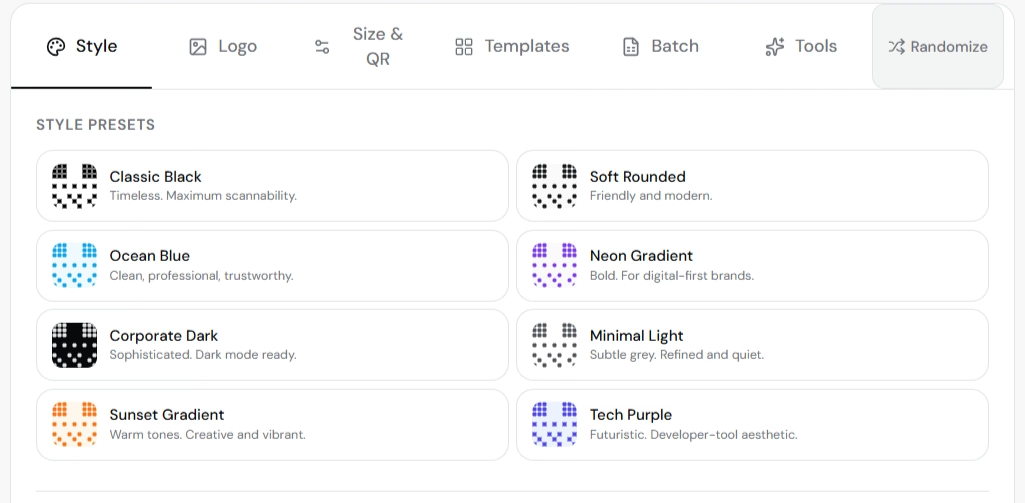
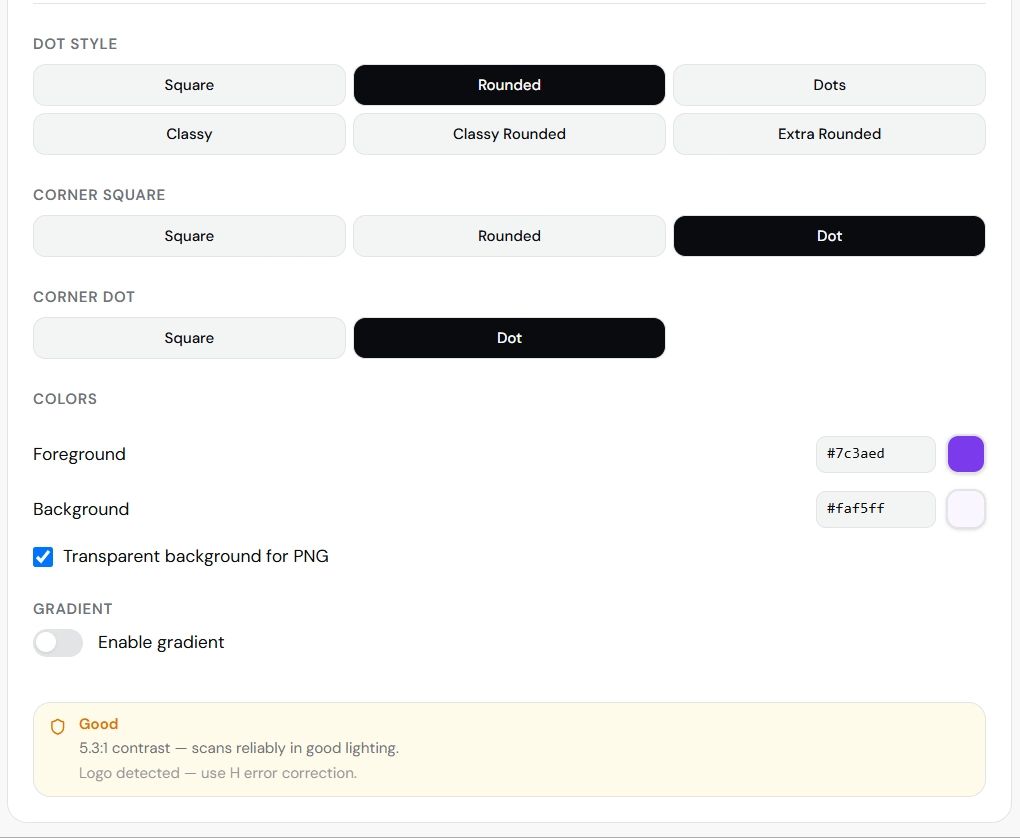
Use strong contrast
A dark code on a light background is the safest option.
Preserve the quiet zone
Leave clean empty space around the QR pattern.
Keep it square
Do not stretch the image horizontally or vertically.
Avoid busy backgrounds
Place the code on a plain background or a clean light box.
Do not make it too small
Contact QR codes can become dense when they contain many fields.
Common vCard QR code mistakes
Including too much information
Adding every available field can create unnecessary data density and privacy exposure.
Using outdated contact details
A static vCard cannot be updated after printing.
Adding a private number accidentally
Check which phone number you are publishing.
Misspelling the email address
A QR code faithfully stores the typo too.
Printing without testing
Always scan the final print proof.
How to test a vCard QR code
Test on iPhone
Use the built-in camera or supported QR scanner and verify the contact preview.
Test on Android
Test with a common Android camera or scanner.
Review every field
Check the name, phone number, email, company, title, website, and address if included.
Save the contact
Complete the save process and verify the address book entry.
Test the printed version
If the code will be printed, scan the physical proof too.
vCard QR code vs website QR code
Choose vCard for saving contact details
Use a vCard when the main goal is to add you directly to a contact list.
Choose URL for more flexibility
A website or landing page can provide a portfolio, services, social profiles, booking links, and multiple contact options.
Combine them
A vCard can include your website field so users can save your contact and still access your online presence.
vCard QR code vs WhatsApp QR code
A vCard helps save contact details.
A WhatsApp QR code is optimized for starting a conversation.
Use vCard for long-term contact saving
This works well for networking, business cards, and professional introductions.
Use WhatsApp for immediate conversation
This works well for sales, customer service, appointments, and inquiries.
vCard QR code checklist
Contact information
- name is spelled correctly
- phone number is current
- email address is correct
- company name is current
- job title is accurate
- website works
- private information has been removed
QR code design
- strong contrast
- enough quiet zone
- square proportions
- readable size
- clean background
Testing
- scans on iPhone
- scans on Android
- contact preview is correct
- saved contact is correct
- final printed version works
Create a contact QR code people can save
A vCard QR code is a practical way to connect printed and digital contact sharing.
It removes manual typing, reduces errors, and gives business cards and professional materials a useful next action.
Keep the contact information focused, protect private details, use a clear call to action, and always test the final result.
Create your vCard QR code
Generate a contact QR code for your professional details with no login, no watermark, and no forced tracking.