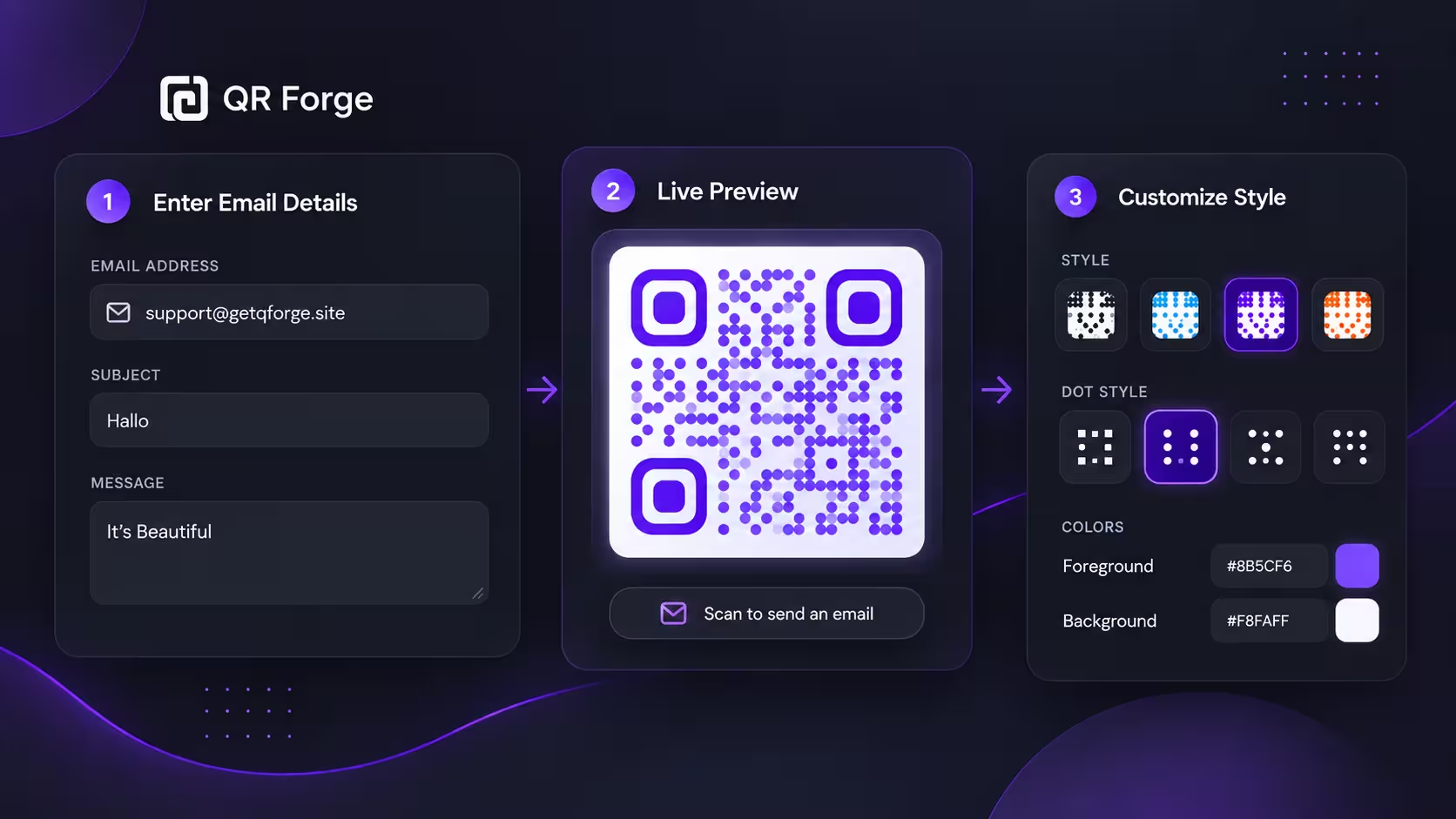
An email QR code makes it easier for someone to contact you without manually typing your email address.
When scanned, it can prepare a new email draft with the recipient address already filled in. Depending on the encoded data, it can also include a suggested subject or message.
This is useful for customer support, feedback, product packaging, events, business cards, brochures, service desks, and other situations where you want to reduce the steps between scanning and writing an email.
Create an email QR code
Generate a static QR code that opens an email action directly from a compatible phone.
What is an email QR code?
An email QR code stores an email action inside the QR pattern.
It commonly uses a mailto link
A simple email action can look like:
mailto:hello@example.com
When a compatible device recognizes that format, it can offer to open the user's email app.
It can include more than the email address
A mailto action can also include optional information such as a subject and message body.
The user still controls sending
Scanning the QR code does not automatically send an email. The user can review, edit, or cancel the draft before sending it.
An email QR code prepares an email action. It should not silently send a message on the user's behalf.
How to create an email QR code in QR Forge
QR Forge keeps email QR creation inside the main generator, so you can prepare the email action, preview the QR code, customize the style, and export it from one screen.
Step 1: Choose Email in QR Content Type
Open the generator and select Email in QR Content Type.
QR Forge uses the same main generator for multiple content types, so after choosing Email, the form changes to an email-specific input panel.
Step 2: Enter the recipient email address
In the Enter your details panel, fill in the EMAIL ADDRESS field.
For example:
support@getqrforge.site
Double-check every character before continuing. A static QR code will preserve the recipient address exactly as entered.
Step 3: Add a subject
Use the SUBJECT field to suggest what the email is about.
In the example interface, the subject is:
Hallo
A subject can help users understand the action and can help you organize incoming messages later.
Step 4: Add a message body
Use the MESSAGE field for a short pre-filled email message.
In the example shown, the message is:
It's Beautiful
Keep the message short and flexible. A pre-filled body should help the user start, not force them to delete a long block of text.
Step 5: Check the Live Preview
As you fill in the email details, QR Forge updates the Live Preview on the right.
This lets you confirm that the QR code has been generated and gives you a quick visual check before downloading.
The preview area also shows the beginning of the encoded mailto: action below the QR code, which can help you verify that the correct email workflow is being prepared.
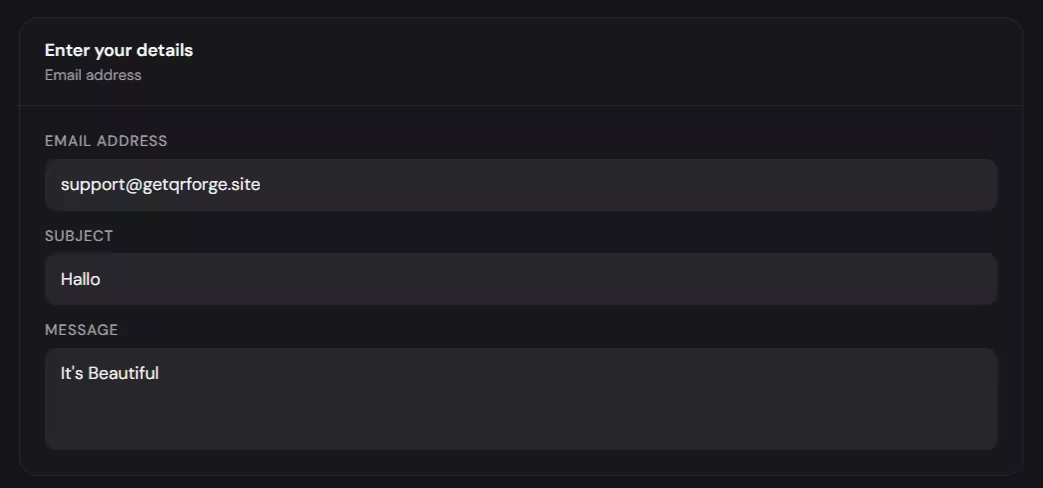
Enter the recipient email, subject, and message, then verify the QR code in Live Preview.
Step 6: Customize the QR style
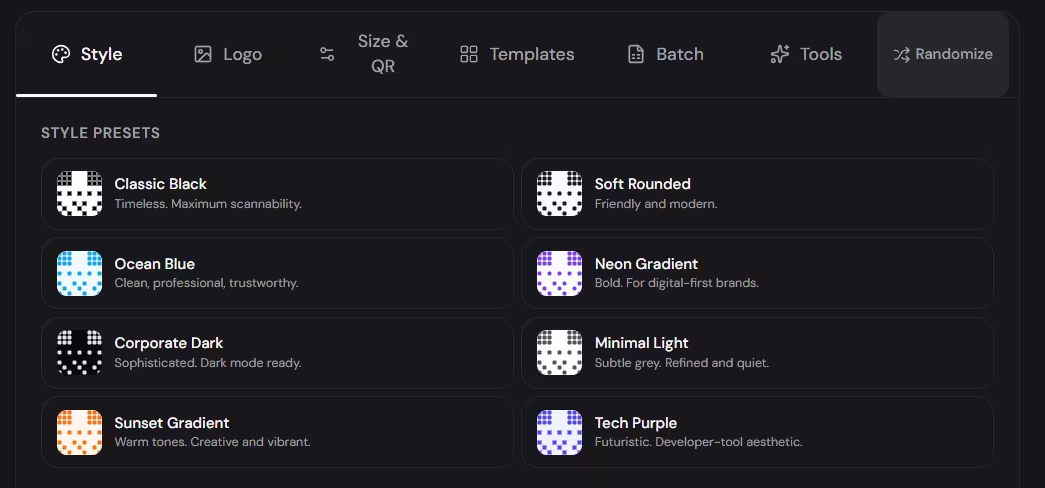
Below the form, QR Forge provides tabs such as:
- Style
- Logo
- Size & QR
There is also a Randomize option.
For the email QR tutorial, the most relevant section is Style.
In the current interface, the Style tab includes Dot Style, Corner Square, and Corner Dot options.
The available Dot Style options shown are:
- Square
- Rounded
- Dots
- Classy
- Classy Rounded
- Extra Rounded
The available Corner Square options shown are:
- Square
- Rounded
- Dot
The available Corner Dot options shown are:
- Square
- Dot
Adjust dot and corner styles if you want a more branded look, but keep the QR code easy to scan.
Step 7: Set colors, transparency, and gradient carefully
The current Style tab also includes a Colors section for:
- Foreground
- Background
In the screenshot example, the selected colors are:
- foreground:
#7c3aed - background:
#faf5ff
The same section also includes:
- Transparent background for PNG
- Enable gradient
These controls are useful for branding, but they should be used carefully. Good contrast matters more than decoration.
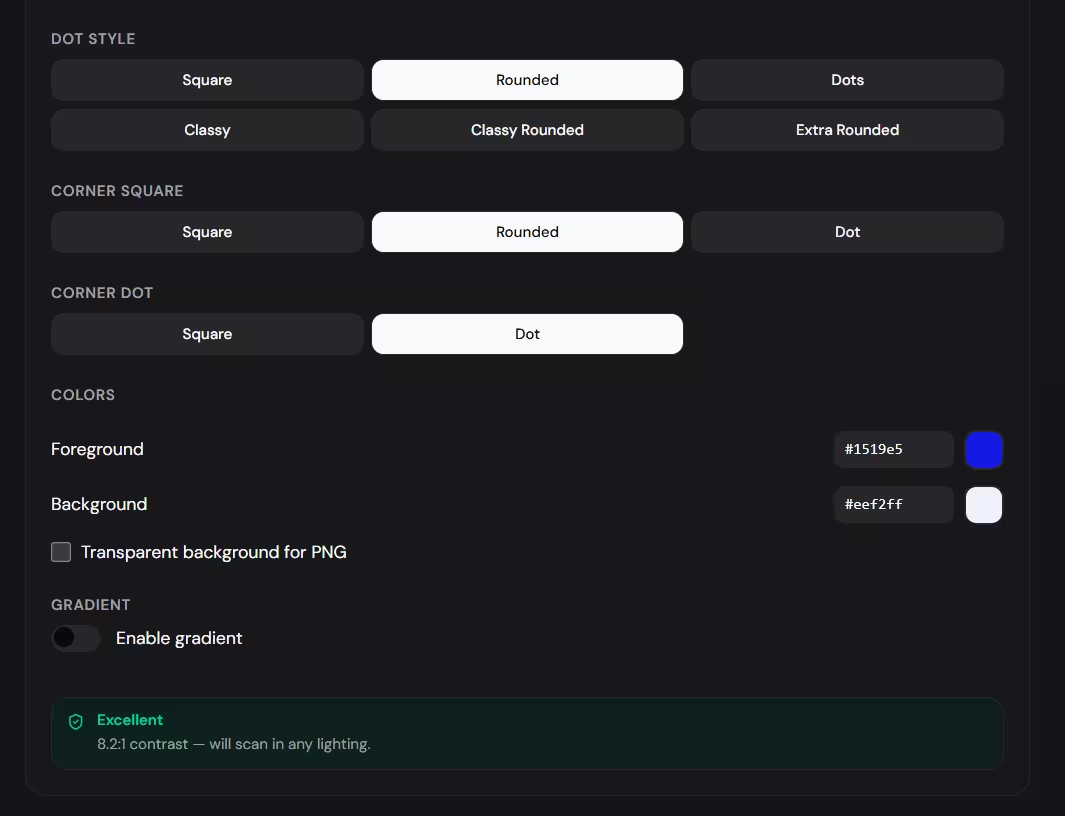
Use branding options carefully. A clean dark-on-light QR code is still a strong default for reliability.
If scan reliability matters more than styling, keep the QR code simple: strong contrast, enough size, and minimal visual experimentation.
Step 8: Download the QR code
Use the Download PNG button in the Live Preview panel.
The current interface also includes a format selector next to the download button, so review the selected output format before exporting.
Choose a size and format that fit the final use case.
Step 9: Test the final exported QR code
After downloading, scan the exported file with a phone and confirm that:
- the correct email app or email action opens
- the recipient address is correct
- the subject is correct
- the message body is correct
If the QR code will be printed, test the physical print too.
How an email QR code works
The QR code stores the email action as encoded data.
Basic example
mailto:hello@example.com
With a subject and message
The mailto format can also include a suggested subject and body.
The phone interprets the action
After scanning, the operating system or QR scanner recognizes the mailto format and passes it to an email app.
Does an email QR code send an email automatically?
No.
The scanner prepares the action
The phone may open a new email draft.
The user remains in control
The user can edit the message, add context, attach files, cancel, or send.
Can an email QR code include a subject?
Yes.
A pre-filled subject can make incoming emails easier to organize.
Customer support
Support Request
Sales inquiry
Product Inquiry
Feedback
Customer Feedback
Choose wording that will still make sense after the QR code has been printed for some time.
Can an email QR code include a message?
Yes.
Support example
Hello, I need help with:
Sales example
Hello, I would like to request more information about:
Feedback example
My feedback is:
Keep it flexible so the user can add their own details.
How long should the pre-filled email be?
Shorter is usually better.
Long messages increase the QR payload
More characters create a denser QR pattern.
Dense codes need more space
If the code will be printed small, a long message can reduce scan reliability.
For payload limits, see how much data can a QR code store.
Email QR code vs plain text email address
These two approaches behave differently.
Plain text
A text QR may simply display:
hello@example.com
The user may need to copy the address manually.
Email QR
A structured email action tells the device that the address should be opened in an email workflow.
If the goal is to send an email, use the Email content type.
Email QR code vs vCard QR code
Email QR code
Best when the primary action is:
Send an email
vCard QR code
Best when the primary action is:
Save this contact
A vCard can contain an email address, but its main purpose is contact saving.
Read how to create a vCard QR code for that workflow.
Email QR code vs website contact form
A QR code can either open an email action or lead to a contact form.
Email QR advantages
- fewer steps
- uses the user's email app
- no contact form required
- simple static QR workflow
Contact form advantages
A web form can collect structured information such as name, order number, category, file upload, and consent.
Choose based on the workflow you actually need.
Do email QR codes work without internet?
The QR code itself can be scanned without internet.
Decoding is local
The device can read the encoded email action from the QR pattern.
Sending is online
The actual email normally needs internet connectivity.
Depending on the email app, the device may prepare a draft and send it later when connectivity returns.
For the broader explanation, read do QR codes work without internet.
Do email QR codes expire?
A static email QR code does not contain a built-in expiration timer.
Email address must stay valid
If the mailbox is deleted or changed, the QR code still points to the old address.
Subject and message stay fixed
The encoded content does not update automatically.
New details require a new static code
If you need to change the recipient or pre-filled content, generate a new QR code.
Can you edit an email QR code after printing?
Not if it is static.
Changing the recipient, subject, or message changes the payload and requires a new QR code.
For the general rule, read can you edit a QR code after creating it.
Email QR codes for customer support
Email QR codes can reduce typing for customers.
Product packaging
Print a support QR near your help information.
Manuals
Place it near troubleshooting or warranty sections.
Store counters
Let customers start a support message from their phone.
Use a dedicated support address
For example:
support@example.com
A role-based address can be easier to maintain than a private employee mailbox.
Email QR codes for feedback
A QR code can prepare a feedback email.
Suggested subject
Customer Feedback
Suggested body
My feedback is:
Keep it simple so users can add their own experience.
Email QR codes for events
Event organizers can use email QR codes for organizer contact, speaker questions, media inquiries, vendor communication, or feedback.
Use a role-based mailbox
An address such as:
events@example.com
can remain useful even when staff members change.
Email QR codes for business cards
A business card can include an email QR when sending a message is the main action.
Add a clear call to action
Examples:
Scan to email me
Scan for inquiries
If the goal is to save all contact information, a vCard QR may be a better choice.
Email QR codes for product packaging
Packaging is a useful place for support or product inquiry QR codes.
Stable mailbox
Use an address you expect to maintain for the lifetime of the product.
Avoid personal addresses
Role-based mailboxes are easier to maintain over time.
Test the print
Packaging may introduce glare, curves, small print size, folds, and surface texture.
Email QR code privacy
The encoded email information is not secret.
The recipient address can be decoded
Anyone who can scan the QR code may be able to inspect the address.
Public codes attract public contact
Do not publish a private mailbox unless you are comfortable receiving messages from anyone who sees the code.
Avoid sensitive pre-filled information
Do not place passwords, tokens, customer records, or private personal data inside the message body.
How to make an email QR code easy to scan
Keep the payload concise
Short recipient, subject, and body data create a cleaner pattern.
Use strong contrast
Dark modules on a light background remain a reliable default.
Preserve the quiet zone
Leave clear space around the QR pattern.
Use enough physical size
Do not print a dense email QR code too small.
Test the final design
Test after styling, resizing, or adding a logo.
How to test an email QR code
Test on iPhone and Android
Email handling can differ depending on the platform and installed apps.
Verify the recipient
Confirm every character.
Verify subject and message
Check spaces, punctuation, line breaks, and special characters.
Test the exported image
Do not test only the preview.
Test the print
If it will appear on a card, flyer, poster, or package, scan the actual print.
Common email QR code mistakes
Wrong email address
A single typo can send users to the wrong mailbox.
Subject is too vague
Incoming messages become harder to organize.
Message body is too long
This increases QR density and makes the draft feel restrictive.
Personal mailbox used publicly
A business or role-based address may be more appropriate.
No call to action
Users may not know what the QR code does.
No cross-device testing
Email handling can vary by device and installed applications.
Good calls to action for email QR codes
Examples include:
- Scan to email us
- Scan for support
- Scan to send feedback
- Scan for inquiries
- Scan to contact the organizer
- Scan to request a quote
The label should match the actual email action.
How QR Forge handles email QR codes
QR Forge includes Email as one of its QR Content Types.
One generator workflow
You can select Email in the same generator used for other supported content types.
Live Preview
The generated QR code is visible while you prepare and customize it.
Static output
The email action is encoded into the static QR code.
No account required
Basic QR Forge generation does not require signup.
No forced tracking redirect
A static email action does not need a QR Forge redirect layer.
Email QR code checklist
Email content
- recipient address is correct
- subject is useful
- pre-filled message is concise
- no sensitive information is encoded
- public mailbox is appropriate
QR design
- strong contrast
- sufficient size
- quiet zone preserved
- no distortion
- styling remains readable
Testing
- scanned on iPhone
- scanned on Android
- correct email action opens
- recipient is correct
- subject is correct
- message is correct
- exported file works
- printed version works
How to create an email QR code: final answer
The workflow is straightforward:
Choose Email
-> Enter the email details
-> Review Live Preview
-> Customize if needed
-> Download the QR code
-> Scan and verify the draft
An email QR code is useful when you want to make contacting you easier without asking users to manually type an address.
Keep the encoded content concise, use a mailbox suitable for public contact, test the final QR code on multiple devices, and verify every field before printing.
Create your email QR code
Generate a static email QR code directly in your browser with no login or watermark.