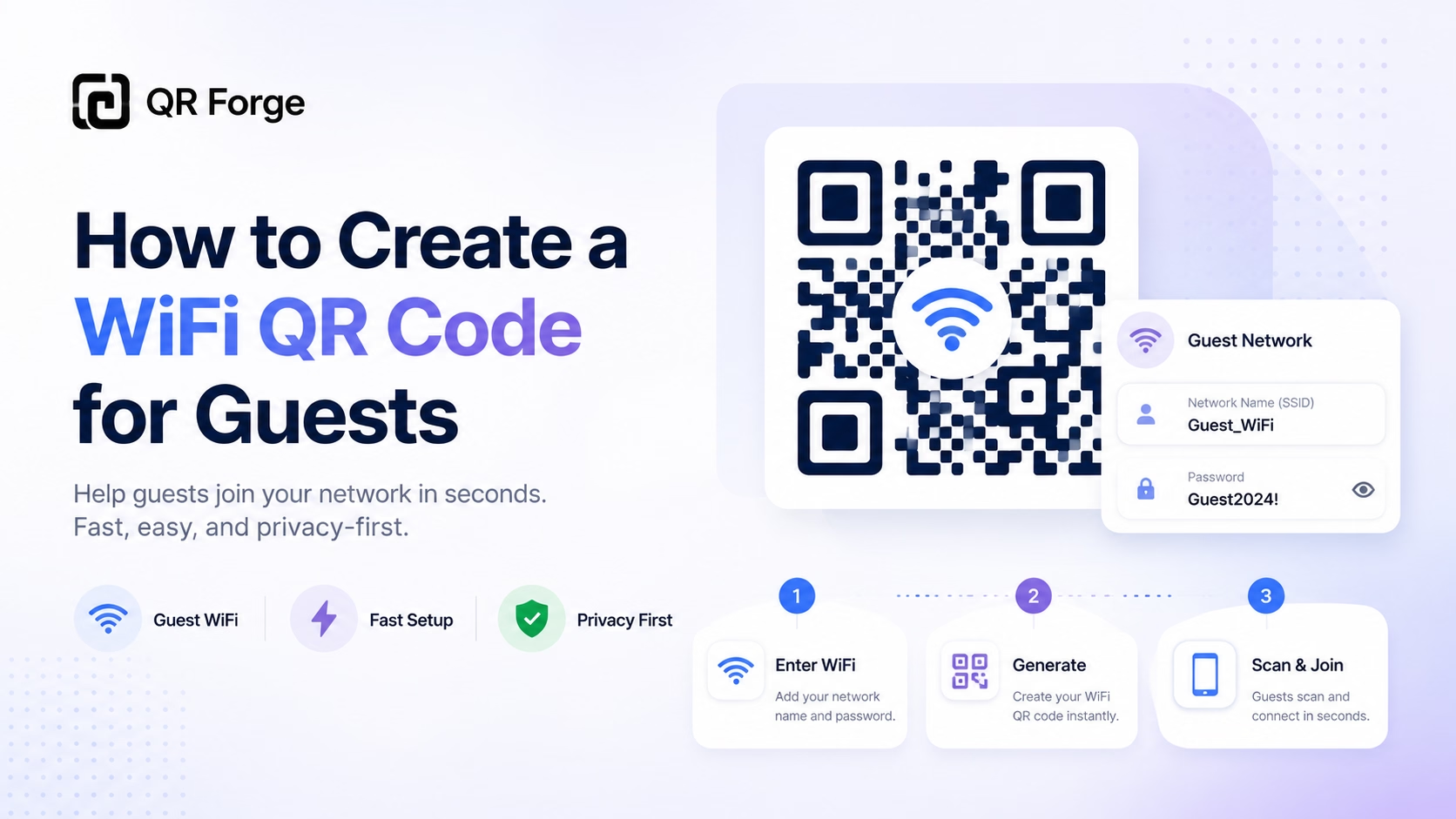
A WiFi QR code stores wireless network details so guests can try joining without typing the network name and password. It is useful at home or in a cafe, hotel, office, rental, classroom, or event—but the code should be shared with the same care as the credentials it contains.
This guide explains the settings to enter in QR Forge, how to test the finished code, and how to share it without exposing more network access than intended.
Create a WiFi QR code
Generate a guest WiFi QR code in your browser without login or watermark.
What a WiFi QR code contains
The code encodes the network name (SSID), security type, and password when the network requires one. QR Forge supports WPA/WPA2 (encoded as WPA), WEP, and No Password for an open network. The selected option needs to match the router: choosing the wrong security type can make a perfectly readable code fail to join.
On a compatible phone or scanner, scanning may show a prompt to join. It does not silently connect every device, verify the credentials with your router, or guarantee internet access. Camera support and confirmation steps vary by operating system, scanner app, network configuration, and device settings.
Where guest WiFi codes help
At home and in rentals
Place a code in a guest room or on a welcome card where visitors can find it after arrival. Avoid putting a private home-network code in a window where people outside can scan it. In a rental, make sure the displayed details match the current network and remove outdated cards between stays.
Cafes, restaurants, and hotels
A table card, menu insert, room information sheet, or reception sign can reduce repeated questions to staff. Put the QR near the place guests need it, and include a short “Scan to join WiFi” label. Test the size at the actual table or wall distance.
Offices, classrooms, and events
Reception areas and meeting rooms are useful places to share visitor access. At a classroom or event, display a larger copy where attendees can scan without crowding. In all these settings, a separate guest network is safer than sharing a network used by private or business devices.
Create a WiFi QR code in QR Forge
1. Enter the network details
Open the WiFi QR Code Generator. Enter the SSID exactly as it appears in the router settings, then choose the network's actual security type. WPA/WPA2 is selected by default. WPA and WEP require a password; choose No Password only for an open network. No sample password is inserted for you.
Turn on Hidden network only if the SSID is hidden on the router. The setting is encoded into the WiFi payload; whether a scanner can use it consistently depends on its device and app.
The encoder escapes reserved WiFi payload characters in the SSID and password, and supports Unicode text. Enter the values as they appear in your network settings instead of adding QR-format escape characters yourself. Check the preview carefully when the name or password contains punctuation.
The example in the input screenshot uses a demonstration network. Check capitalization, spacing, punctuation, password, and security mode against your router before making a code for real guests.
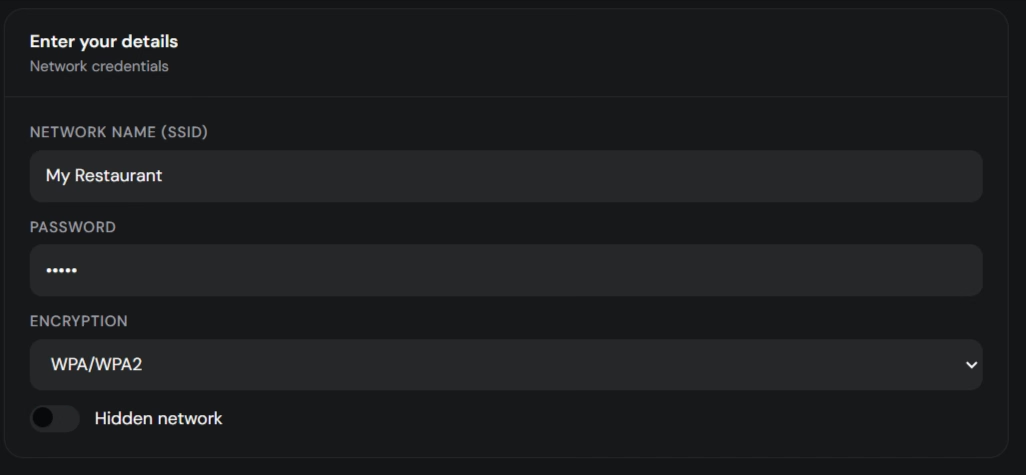
Enter the exact SSID and select the matching security and hidden-network settings.
2. Choose a readable design
The Style panel offers presets and controls for dot and corner shapes, colors, gradients, and transparency. You can also use a template, logo, or frame. A label such as “Scan to Join WiFi” helps guests understand the action; showing the network name beside the code can reassure them they are joining the intended network.
If you add a logo, gradient, or frame, inspect the final preview and test the exported version. Error correction can help with limited damage to modules, but it does not guarantee that every scanner will read a heavily modified code.
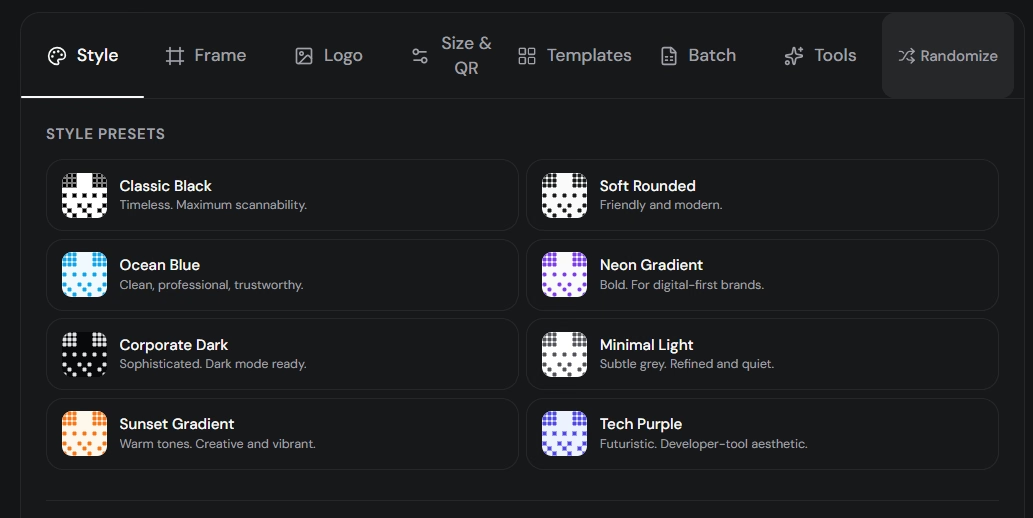
Use the design controls to make the guest code fit a sign or card while keeping the QR pattern clear.
3. Add a frame when it clarifies the action
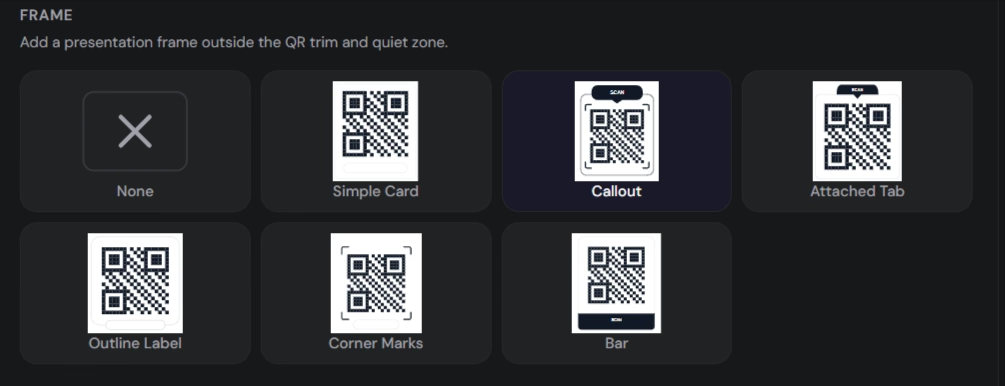
The Frame panel includes options such as None, Simple Card, Callout, Attached Tab, Outline Label, Corner Marks, and Bar. For a guest sign, a Callout frame can group the code with a short instruction. Keep text, borders, and decoration outside the QR pattern and its quiet zone.
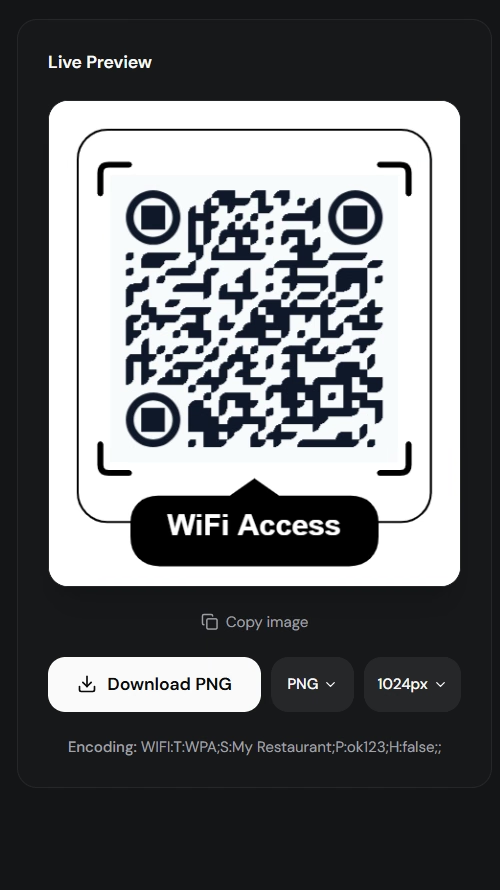
A frame can make the purpose visible; check the complete design rather than assuming the frame improves scanning.
4. Check the encoded details and export
Review Live Preview and the encoded WiFi string below it. The example begins:
WIFI:T:WPA;S:My Restaurant;P:ok123;H:false;;
Here T identifies the security mode, S the SSID, P the password, and H whether the network is hidden (H:true for a hidden SSID). For an open network, the payload omits the password field. Treat the preview as sensitive if it contains a real password, and do not share a screenshot of real credentials.
Choose an export format and size, then download the code. The preview screenshot also shows the frame and the format/size controls.
Check the SSID and security information in the preview before exporting.
5. Test on the intended devices
Scan the exported image from another device—ideally one that is not already connected to the network. Check that the scanner recognizes a WiFi action, the displayed network is correct, and the device offers to join. Test the password and actual connection with a trusted guest device before printing a permanent sign.
iPhone and Android behavior
Some iPhones recognize WiFi codes directly in Camera; many Android phones do too, while others may require a scanner app or a QR flow in WiFi settings. Prompts vary with operating-system version, camera settings, and vendor software. Test the devices your guests are likely to bring instead of relying on one phone as proof of universal compatibility.
Test a guest connection
Use a device that has not already joined the network, scan the final export, and accept the join prompt. Then check the connected network name and try loading a page. If the phone was previously connected, it may hide an incorrect password because it already has valid credentials saved.
Test the printed sign
Print at the size and material you plan to use, then scan from the expected distance and lighting. A code that works on a bright monitor may be too small or low-contrast on textured paper. Adjust the print rather than asking each guest to install a particular scanner unless that is an intentional requirement.
Troubleshoot connection problems
It scans but will not join
Compare the SSID, password, and encryption mode with router settings. A successful scan only confirms that the pattern was read, not that authentication succeeded. Check capitalization and special characters carefully; the displayed network name can look almost identical when punctuation or spacing differs.
The network is hidden
Confirm that the router really hides the SSID, enable the Hidden network option, and test with the actual device or scanner app. Some flows may require choosing or confirming the network manually. If the network is not hidden, leave the option off.
The device joins but has no internet
The QR code can share network details, but internet access depends on the router and service connection. A phone may join WiFi while the network is offline, captive, or limited to local resources. Check the network independently before reprinting the QR code.
The camera does not recognize the code
Try the device’s QR scanner or WiFi settings flow, then inspect export sharpness, size, contrast, and quiet zone. Test a plain black-on-white design without a frame or logo to isolate a visual issue. If only one device fails, verify support on that model before changing the network details.
The password changed
Generate a replacement code and remove or cover old printed copies. A static WiFi code keeps encoding the original SSID, security type, and password; changing the router does not update a poster already in circulation.
Share network access responsibly
Prefer a guest network
A separate guest network can limit visitors’ access to private devices, printers, storage, or work systems. It is usually the better choice for a cafe, rental, event, clinic, classroom, or office reception. Confirm what the router’s guest-network isolation actually does; the label alone does not guarantee a particular security configuration.
Treat the QR image like a shared password
A WiFi QR image is not encrypted. Someone who can scan or decode it may read the included network details. Avoid placing a private home or office network code in a window or public area, and do not post a screenshot containing a real password.
Replace exposed or outdated credentials
If credentials have been exposed or a guest network is no longer appropriate, change the router password and create a new QR code. Keep control of where printed codes are displayed, and remove old copies when the details change. WEP is an outdated security option; use the stronger mode configured for your router rather than selecting WEP merely to satisfy an unfamiliar scanner.
Keep a record of where long-lived signs were placed so you can replace them when the password changes. If temporary event access is needed, consider rotating guest credentials after the event rather than leaving them active indefinitely.
QR Forge constructs the payload locally in the browser. If you explicitly save a design, its form data—including the WiFi details—can be kept in this browser's local storage. Analytics and advertising are separate website services described in the Privacy Policy.
Does a WiFi QR code need internet?
Scanning the code
No internet connection is needed just to scan and read the WiFi details stored in the QR code. The network information is encoded in the pattern itself.
Joining and browsing
The phone still needs to be within range of the router to join, and internet access then depends on whether that network has a working internet connection. A successful scan, a successful WiFi connection, and working internet are three different outcomes.
Create a free WiFi QR code
Generate a guest WiFi QR code with QR Forge. No login or watermark; QR generation is built in your browser.