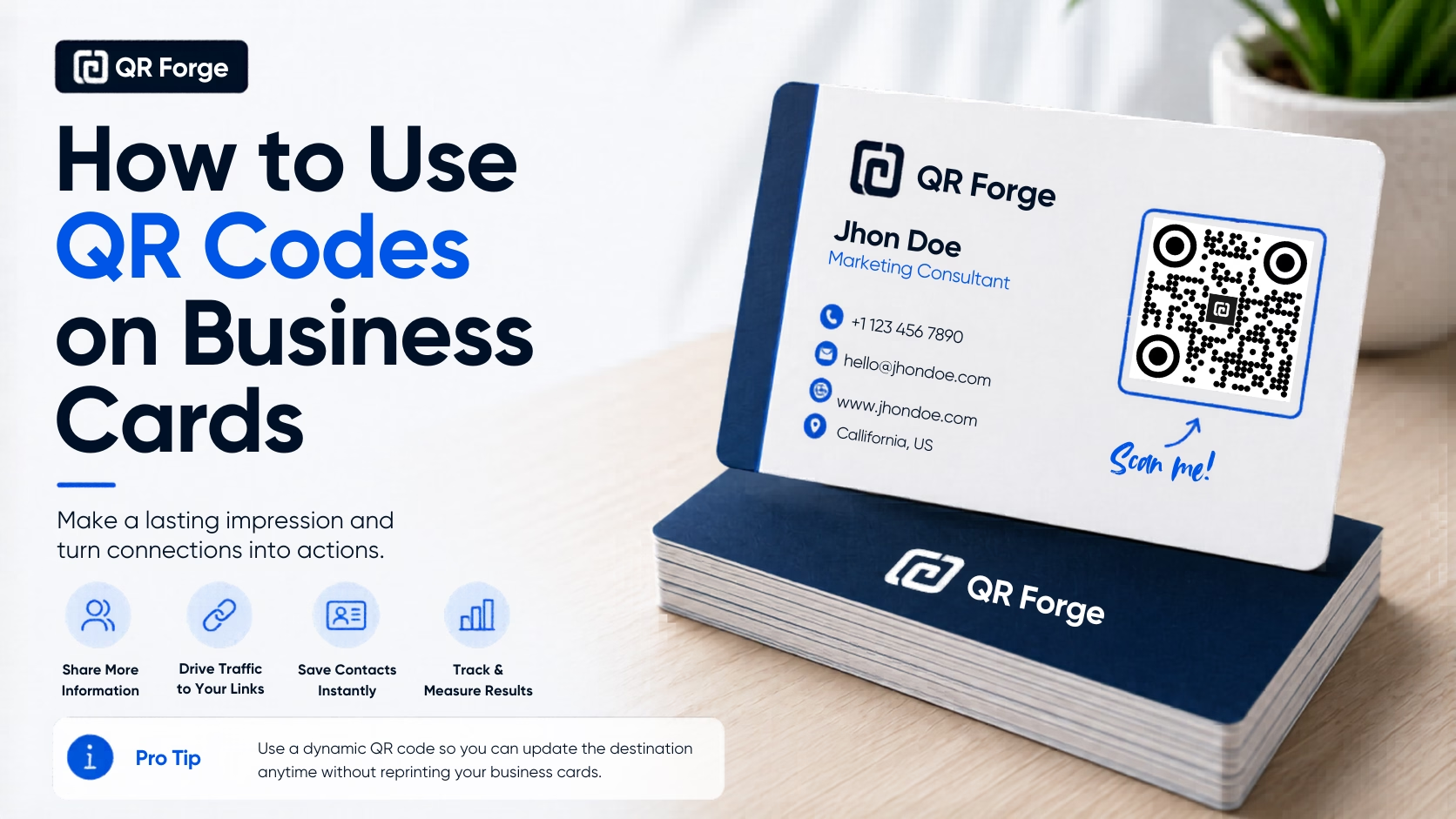
A QR code can turn a traditional business card into a direct connection to your website, portfolio, contact details, booking page, social profiles, or WhatsApp chat.
Instead of asking someone to type a URL or save your phone number manually, you can let them scan the card and continue the conversation instantly.
Create a QR code for your business card
Generate a vCard, website, or WhatsApp QR code without login or watermark.
Why add a QR code to a business card?
A business card has limited space. A QR code connects the physical card to more information without filling the design with long URLs or multiple contact details.
Make contact saving easier
A vCard QR code can encode your name, phone number, email address, organization, website, and address for a compatible scanner to recognize.
Send people to one clear destination
A business card QR code can open:
- your website
- online portfolio
- booking page
- product catalog
- LinkedIn profile
- WhatsApp chat
- digital contact card
- social profile page
Continue the conversation
A card is often exchanged quickly. A QR code provides an immediate next step after the meeting.
What should your business card QR code link to?
Choose the destination based on the main action you want the recipient to take.
vCard for contact details
Use a vCard when you want people to save your contact information.
Only include details you are comfortable sharing publicly.
Website or landing page
A focused landing page works well for businesses, consultants, agencies, and creators.
It can include your services, contact information, portfolio, and booking link.
Portfolio
Designers, developers, photographers, writers, and other professionals can link directly to a mobile-friendly portfolio.
WhatsApp chat
A WhatsApp QR code helps recipients start a conversation without saving your number first.
Booking page
Consultants, clinics, salons, trainers, and service providers can link directly to an appointment page.
Choose one primary action
A business card QR code works best when it has one clear purpose.
Good examples include:
- Save my contact
- View my portfolio
- Book a consultation
- Chat on WhatsApp
- Visit our website
- Connect on LinkedIn
A strong business card QR code answers one question clearly: what should the recipient do after scanning?
How to create a QR code for a business card
Step 1: Define the goal
Decide whether the code should save contact details, open a website, show a portfolio, start a chat, or book a meeting.
Step 2: Prepare the destination
Check every URL, phone number, email address, and contact field.
Use a stable destination you do not expect to change soon.
Step 3: Generate the code
Use a vCard generator for contact details, a URL generator for websites, or a WhatsApp generator for direct chat.
Step 4: Download a high-quality file
Use PNG for most layouts or SVG when the designer needs to resize the code without losing sharpness.
Step 5: Add it to the card
Give the QR code enough space and keep it away from edges, text, and decorative elements.
Step 6: Print and test
Print a proof and scan it before ordering cards in bulk.
Best QR code size for a business card
A practical starting point is:
2 x 2 cm
or approximately:
0.8 x 0.8 inches
Slightly larger is better when the layout allows it.
Preserve the quiet zone
Leave clear empty space around the QR code.
Do not place text, icons, borders, or other design elements too close to the pattern.
Consider data density
Long URLs and detailed contact cards create denser QR patterns.
Dense QR codes may need more physical space to scan reliably.
Where to place the QR code
Back of the card
The back often provides the cleanest placement and gives the QR code more room.
Front corner
A front corner can work when the card remains uncluttered and the QR code has enough margin.
Dedicated contact section
Place the code near a short call to action and your essential visible contact details.
Avoid trim zones
Do not place the code too close to the card edge because printing and cutting can shift slightly.
Keep essential details visible
A QR code should improve the card, not make it useless without a phone.
Keep your:
- name
- role or profession
- company or brand
- one direct contact method
- short QR code call to action
The recipient should still remember who gave them the card.
Add a clear call to action
Good labels include:
- Scan to save my contact
- Scan to view my portfolio
- Scan to book a meeting
- Scan to chat on WhatsApp
- Scan to visit our website
Keep the wording short and match it to the actual destination.
Static vs dynamic QR codes
Static QR code
A static code is a good choice when the destination is stable, you do not need analytics, and you want to avoid subscription dependency.
Dynamic QR code
A dynamic code may be useful when you need to change the destination later or collect scan analytics.
Consider long-term reliability
Business cards may remain in circulation for years. A dynamic code depends on the provider, account, and subscription remaining active.
Design best practices
Use strong contrast
Black on white is the safest combination.
Dark brand colors may work on a light background, but always test them.
Keep the code square
Never stretch or squeeze the QR image.
Avoid busy backgrounds
Place the code on a clean, plain background. Add a solid light box when the card uses photos, textures, or gradients.
Use logos carefully
A small centered logo may work, but it should not cover the corner finder patterns or too much of the code.
Common mistakes to avoid
Making the QR code too small
A subtle, tiny QR code may look elegant but fail to scan.
Linking to unstable content
Avoid temporary pages or destinations you may remove soon.
Forgetting the call to action
Recipients should know what happens after scanning.
Using low contrast
Light colors and busy backgrounds reduce scan reliability.
Cropping the quiet zone
Do not trim too close to the QR pattern.
Skipping print testing
A code that scans on a monitor may fail after printing because of size, ink, paper texture, or glare.
Printing considerations
Matte and glossy finishes
Glossy cards can create glare. Matte cards are often easier to scan, though either can work with proper contrast.
Textured paper
Heavy paper texture can interfere with small modules. Use a larger QR code when needed.
Metallic effects
Avoid printing the QR pattern using reflective foil or metallic ink.
Embossing
Do not emboss or press the QR code itself because physical distortion may affect scanning.
Test the final card
Test the printed card on:
- iPhone
- Android
- newer phones
- older phones
- different camera apps
- different lighting conditions
Hold the card at a natural distance and confirm that it opens the correct destination.
QR codes for different professions
Freelancers and consultants
Link to a portfolio, services page, booking form, or vCard.
Designers and photographers
Link directly to a visual portfolio.
Developers
Link to a personal website, GitHub profile, or project showcase.
Real estate agents
Link to listings, contact details, or WhatsApp.
Restaurants and cafes
Link to a menu, map location, booking page, or WhatsApp ordering.
Sales teams
Link to a catalog, product details, demo booking, or direct chat.
Privacy considerations
Use professional contact details when possible.
Do not include private home addresses, personal notes, or sensitive information in a public QR code.
A QR code does not protect confidential destinations. Use authentication and restricted permissions for private resources.
One QR code or multiple codes?
One clear QR code is usually better than several small codes.
When you need multiple destinations, link to a mobile landing page containing your contact details, portfolio, social profiles, booking button, and WhatsApp link.
Business card QR code checklist
Content
- destination is correct
- contact details are current
- URL is stable
- page works on mobile
- call to action matches the destination
Design
- QR code is large enough
- code remains square
- contrast is strong
- quiet zone is preserved
- background is clean
- code is away from card edges
- a proof has been printed
- printed code scans reliably
- glare is acceptable
- paper texture does not interfere
- multiple phones have been tested
Use QR codes on business cards effectively
A QR code can make a business card more useful when it has a clear purpose.
Choose one primary action, use a stable destination, preserve enough size and white space, add a clear call to action, and test the final printed card.
Create a QR code for your business card
Generate a vCard, website, or WhatsApp QR code with no login, no watermark, and no forced tracking.